
Weighting is a method to improve survey analysis when some groups have too many or too few responses. By applying weights, we ensure the survey results better match the real population and avoid bias in the findings.
When should I weight my survey data?
Weight your survey data when your sample doesn’t match the population proportions you’re trying to understand. An example:
Your survey has 65% female respondents but the population is 50% female, weighting adjusts this imbalance.
Use weighting when the mismatch between your sample and the target population could affect your conclusions.
How are weights calculated?
Weighting might sound like something only for statisticians, but it’s really quite simple math:
Weight = Target % / Unweighted %

Example:
If your survey has 51.73%: men and 48.27%: women,
but you want a 50/50 split:
50 / 51.73 = 0.966621 (Men's weight factor)
50 / 48.27 = 1.035766 (Women's weight factor)
Weighting in Survey Automator
Step 1 – Create a weight model
To weight your survey data:
1. Go to Report → Report settings ⚙️→ Weighting → New weight model
2. Select the question you want to weight, e.g. Gender
3. Enter your target weights in any format, e.g. Male 50, Female 50
4. Press “Apply”
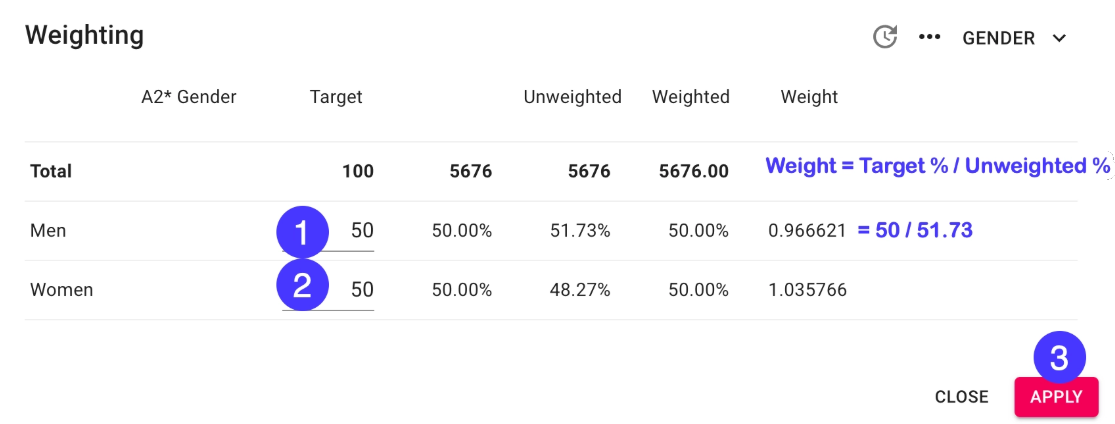
Step 2 – Activate weights in your report
To create a report using your new weights:
1. Goto Report → Report settings ⚙️→ Weighting → Weights: On
2. Refresh your report using the “Sync” button
What if I need to weight multiple variables?
You have two alternatives:
● If you only have the individual proportions within each variable → Alternative 1
● If you have the combined proportions of both variables → Alternative 2
Here’s two examples to help you choose:
Individual proportions – use Alternative 1
(raking)
| Gender | Targets |
| Male | 50% |
| Female | 50% |
| Age Groups | Targets |
| 18-34 | 33% |
| 35-54 | 33% |
| 55+ | 33% |
Weighting multiple variables – alternative 1 (Raking)
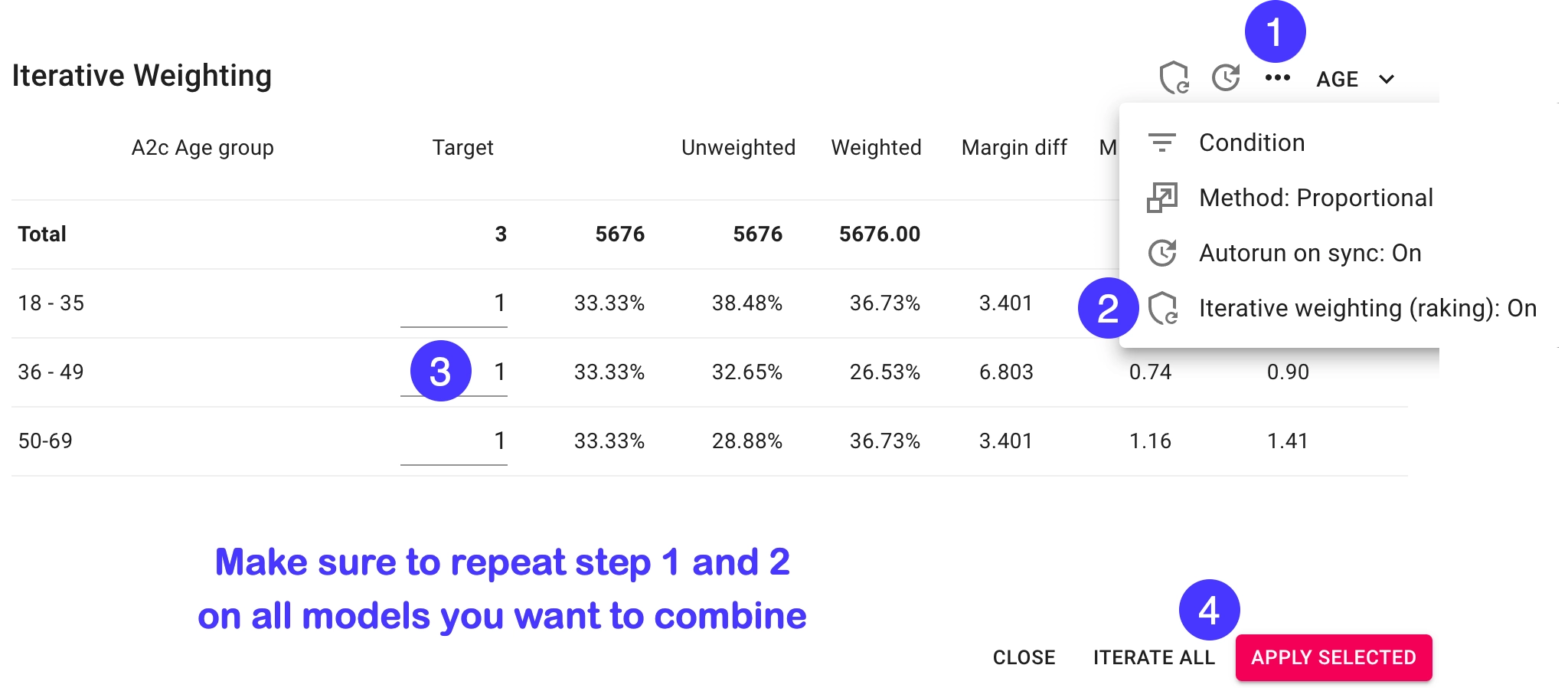
You can combine several weight models and use iterative weighting to make all variables fit your targets. This weighting process is called raking and iteratively updates previous weights taking you closer to your targets each time applied.
1. Choose New weight model and choose another question to weight on
2. On all weight models you want to combine choose “…” → Iterative weighting (raking)
3. Do one of the following:
3. a) Press Iterate all … or
3. b) Press “Apply selected” to iterate yourself – repeat until margins are small enough
Conducting quality controls
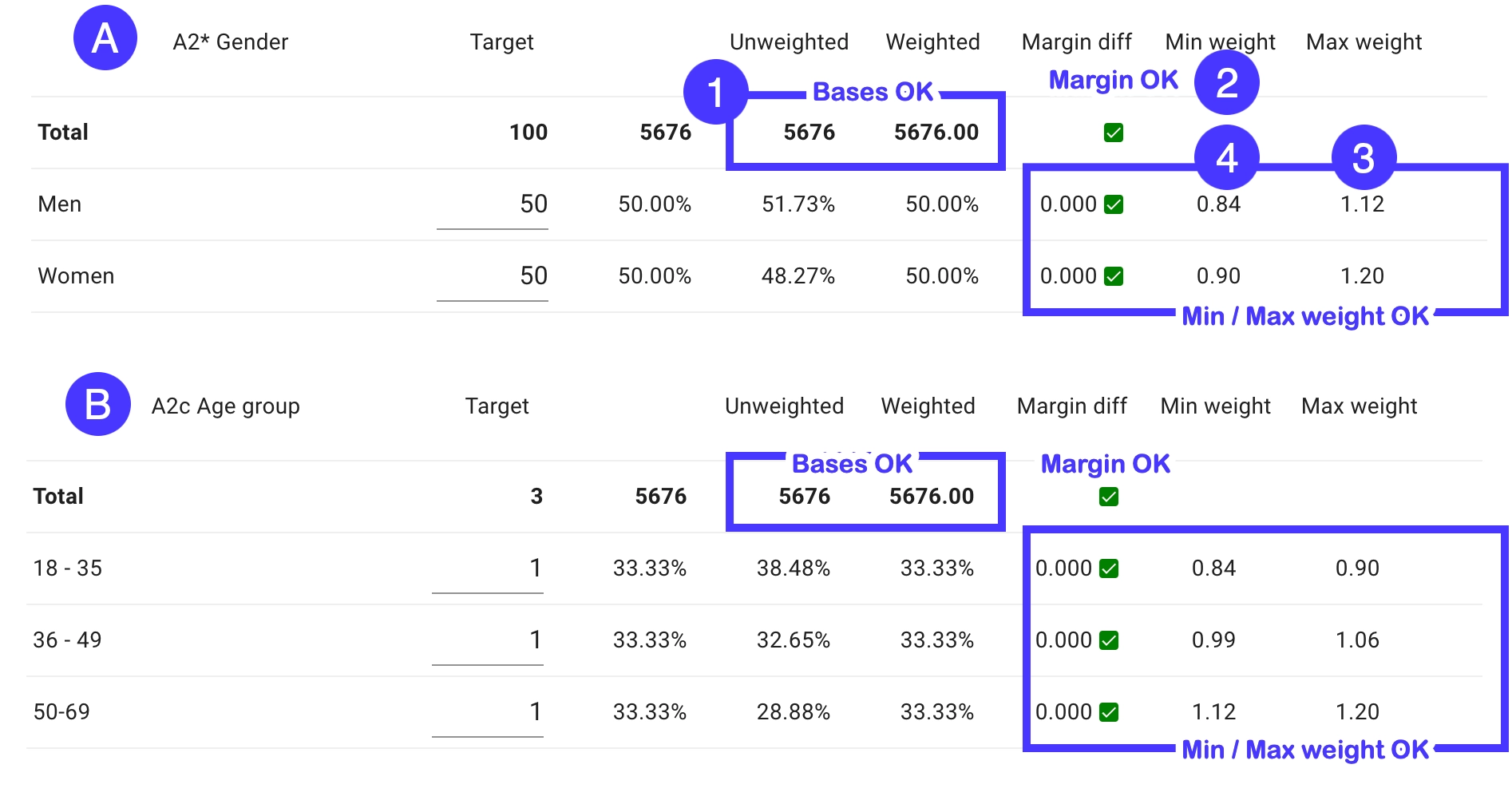
Conducting a few quality controls helps ensure your weighted survey data remains statistically sound is a good practice:
1. Check that the margin diff is sufficiently small (less than 0.1% e.g.)●
2. Control that your weighted base is the same as your total base(Optimally your weighting all responses on all models)
3. Check that max weight is sufficiently small (smaller than 3)(you don’t want a few responses to have too big an impact)
4. Check that min weight is sufficiently big (bigger than than 0.3)(you don’t want responses to have to small impact)
What if some my variables has missing answers?
Common practice is to only apply weighting to responses with complete data.
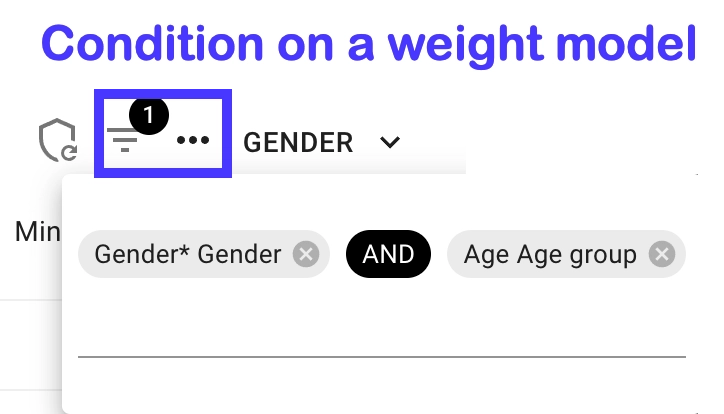
Let’s say you weight on Gender and Age you’ll only want to weight responses with answers to both those questions.
You achieve this by setting the same condition on all your weight models. The condition should be defined as having answers to all variables included in the multi variable weight model:
Another alternative would be include missing responses in your weight targets.
Let’s take Gender as an alternative, we could include missing answers like this:
| Gender | Targets |
| Male | 49% |
| Female | 49% |
| Missing | 2% |
Handle this by creating a calculated variable with a Missing alternative and assigning an appropriate target to it in your weight model.
Weighting multiple variables – alternative 2 (Cell weighting)
Another weighting option when you have complete combined proportions of your target variables is called cell weighting. (The method is also called “cell-based post-stratification” or “complete post-stratification”.)
Instead of iteratively weighting each variable separately, you weight based on the full cross-tabulation of variables.
When to use cell weighting
Use this method when:
● You have access to the exact population proportions for all combinations of your variables
● Your sample size is large enough that each cell in the combined matrix has sufficient responses
Sufficient responses per cell?
A rule of thumb is to have at least 30 responses per cell. If you have less an option is to merge cells together to bigger groups. Another option is to consider raking (alternative 1).
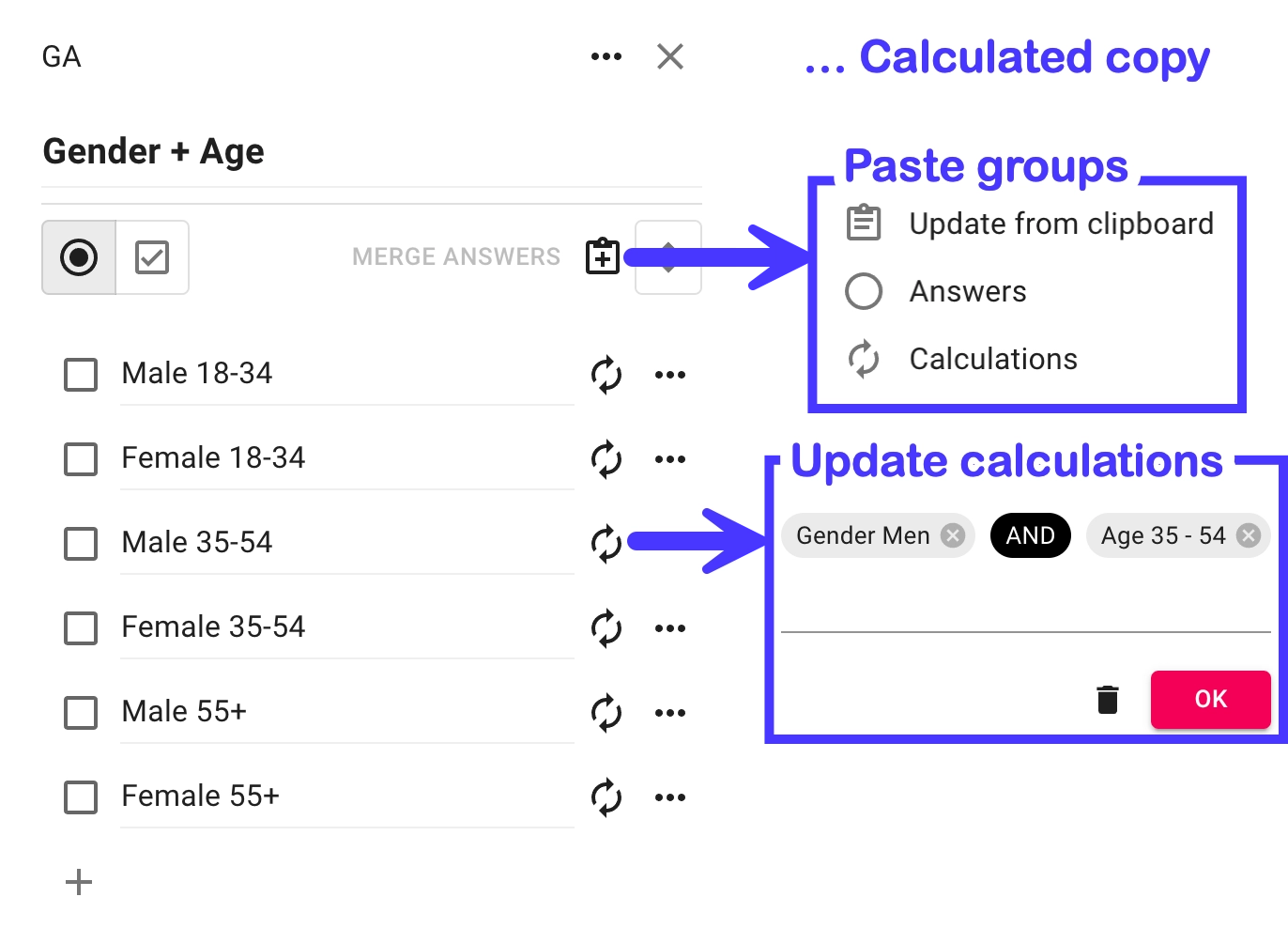
Step 1. Creating the combined variable
1. Go to Report → Edit → Survey variable list
2. Hover the final variable you want to combine → … → “Calculated copy”
3. Paste or manually enter your target matrix labels
4. Paste or manually enter the calculations
Step 2. Create the weight model
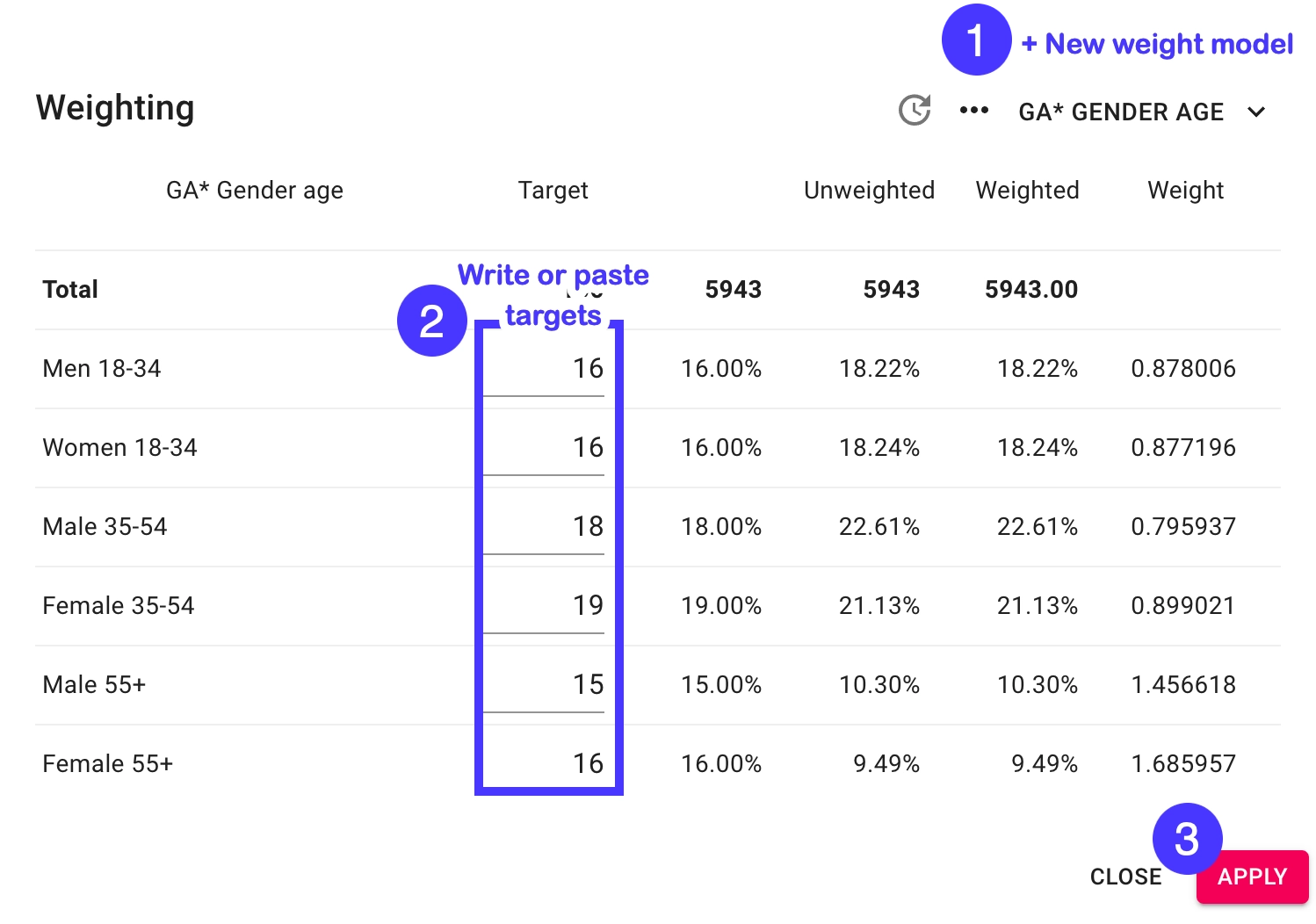
The process is the same as for a single variable:
1. Goto Report → Report settings ⚙️→ Weighting → New weight model
2. Select the calculated question you just created, e.g. Gender + Age
3. Enter or paste your target weights for each cell
4. Press “Apply”
See Survey Automator in action
Want to speed up your survey workflow? Book a quick demo and we’ll show you how teams automate reporting and weighting.