Survey Automator User Guides
Everything you need to get the most out of the Survey Automator platform. Browse by category below — click any topic to expand it and find step-by-step guides.
Distribute
Connections
Survey
How to build a reusable product evaluation survey
Demo project: https://app.researchautomators.com/#/23947/Survey
This guide explains how to build a single product evaluation survey that can be reused across multiple products — in this case, energy drink brands and flavors. The key mechanism is a hidden ProductID field that is pre-filled via a URL parameter when distributing the survey. Based on that value, dynamic bookmarks automatically display the correct brand name and flavor throughout the survey, so each respondent sees questions tailored to their assigned product without requiring separate surveys.
Step 1.
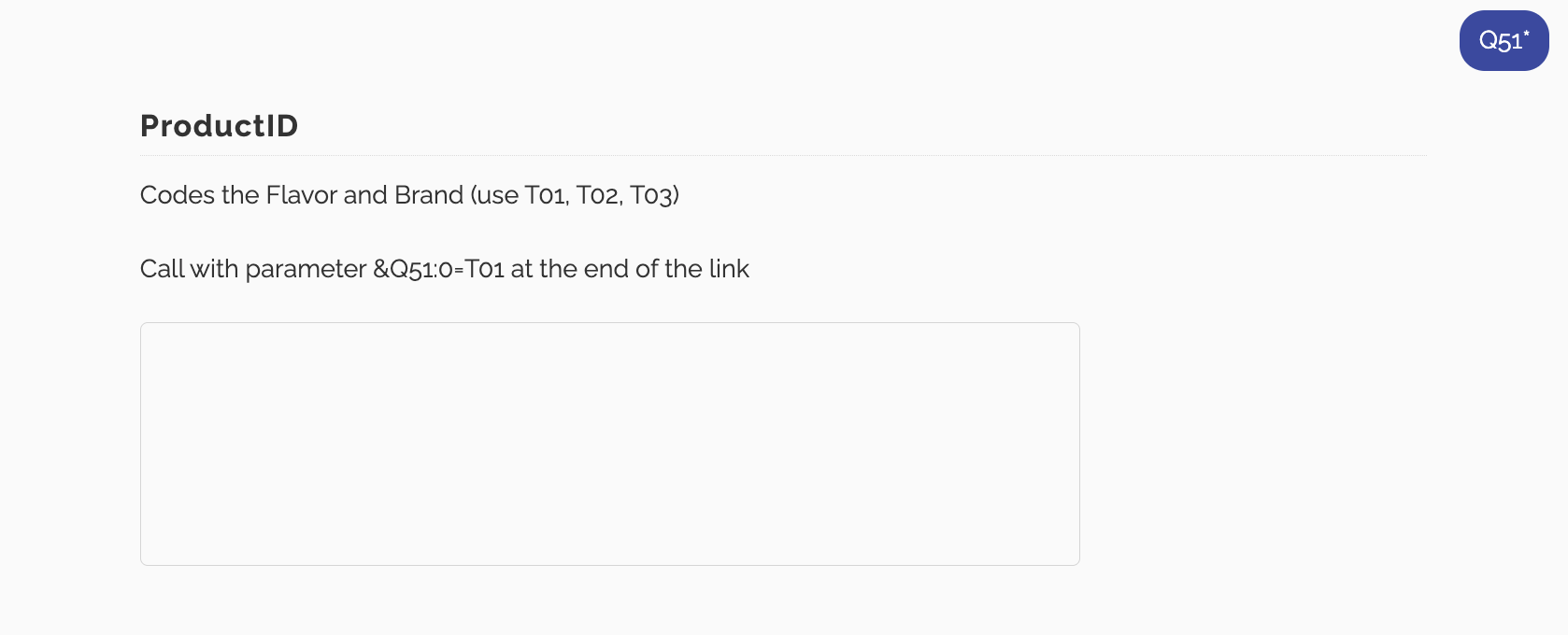
Create an Open Comment question. Name it ProductID and give it the same ID. This question acts as the carrier for the product code (T01, T02, T03 etc.) that will drive all the dynamic Bookmarks later in the survey.
Step 2.
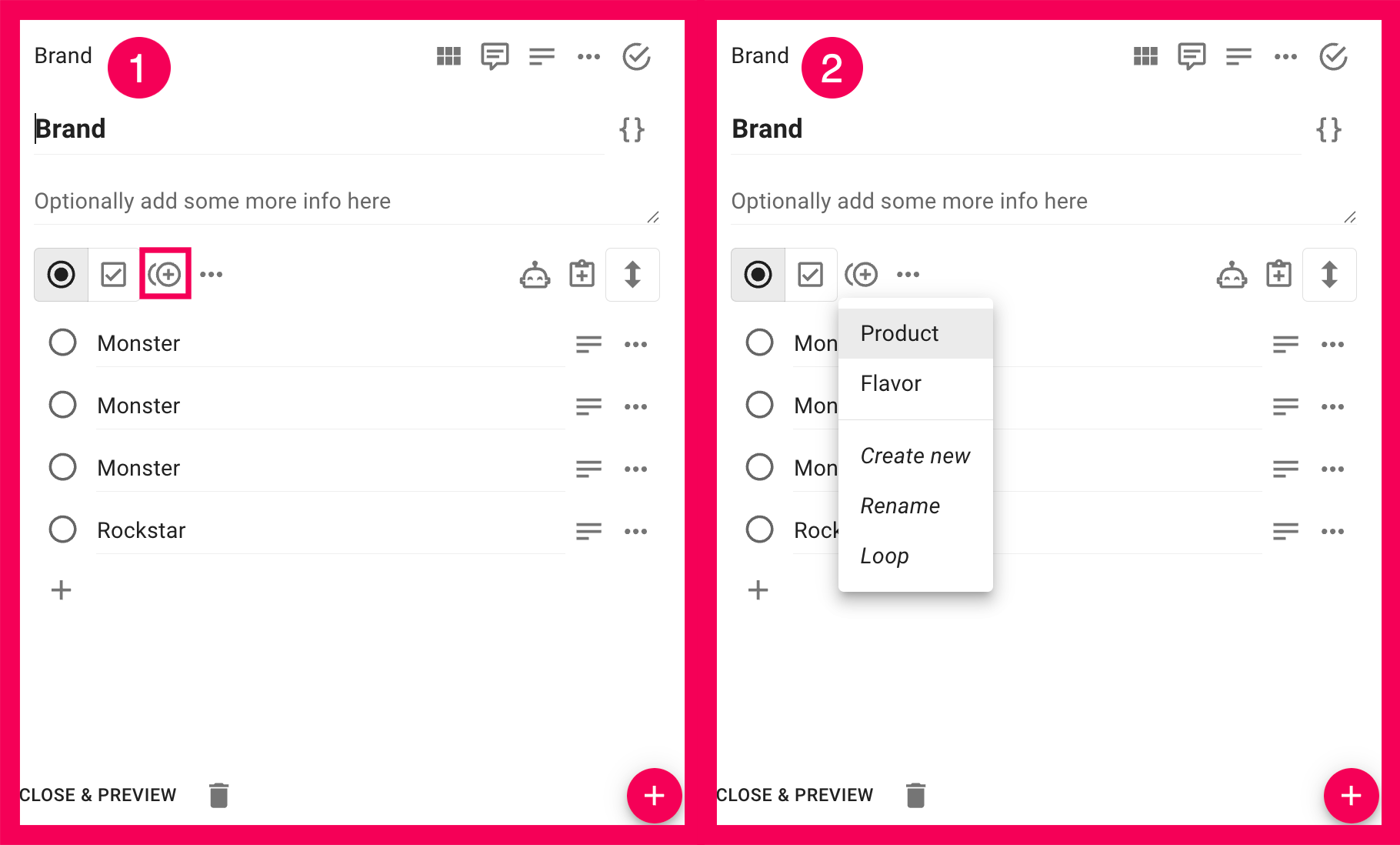
Create a Single Select question. In this example, we will name it Brand, same goes for the ID.
Enter all the answer alternatives → Settings → Answer block → Create new, and name the answer block (e.g. “Product”).
Step 3.
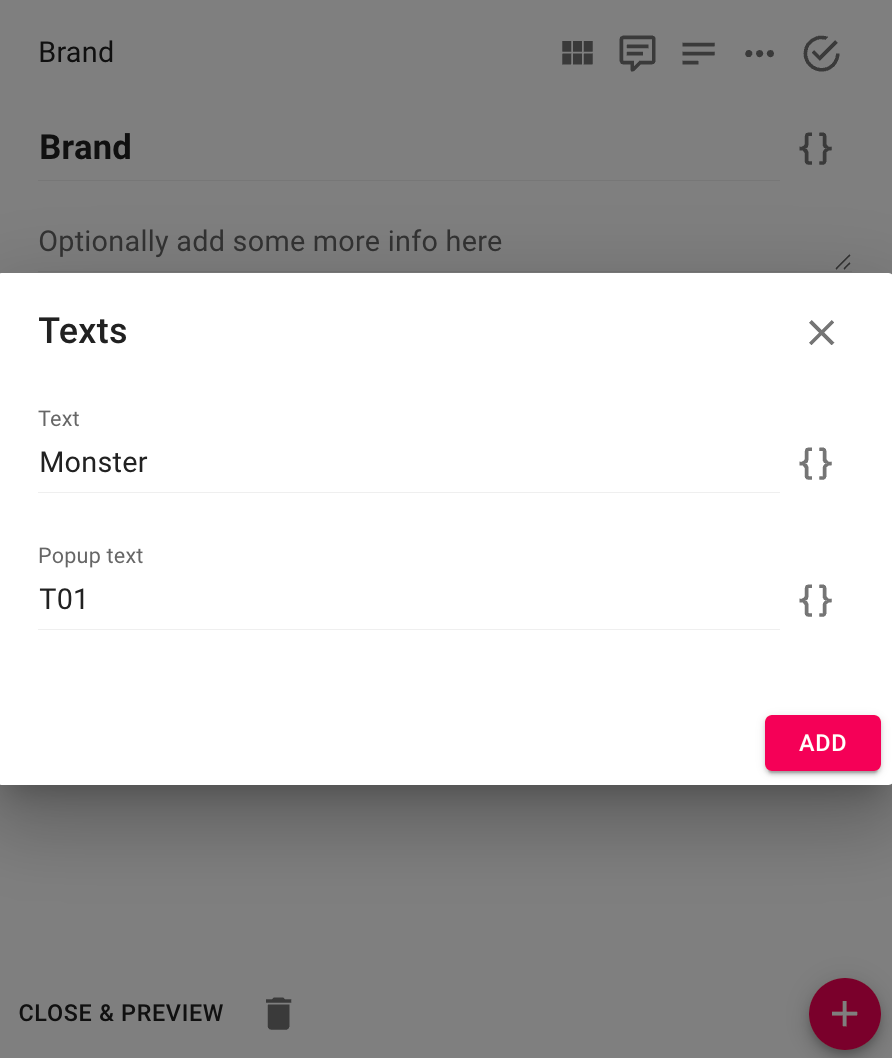
For each answer alternative in the Brand question, you need to assign a T-code via the Popup text field. This is what links each answer option to a specific product code.
For the first alternative: click the answer’s settings → Edit texts → Add texts → Popup text → enter T01.
Repeat for each subsequent alternative in ascending order: T02, T03, T04, and so on.
Step 4.
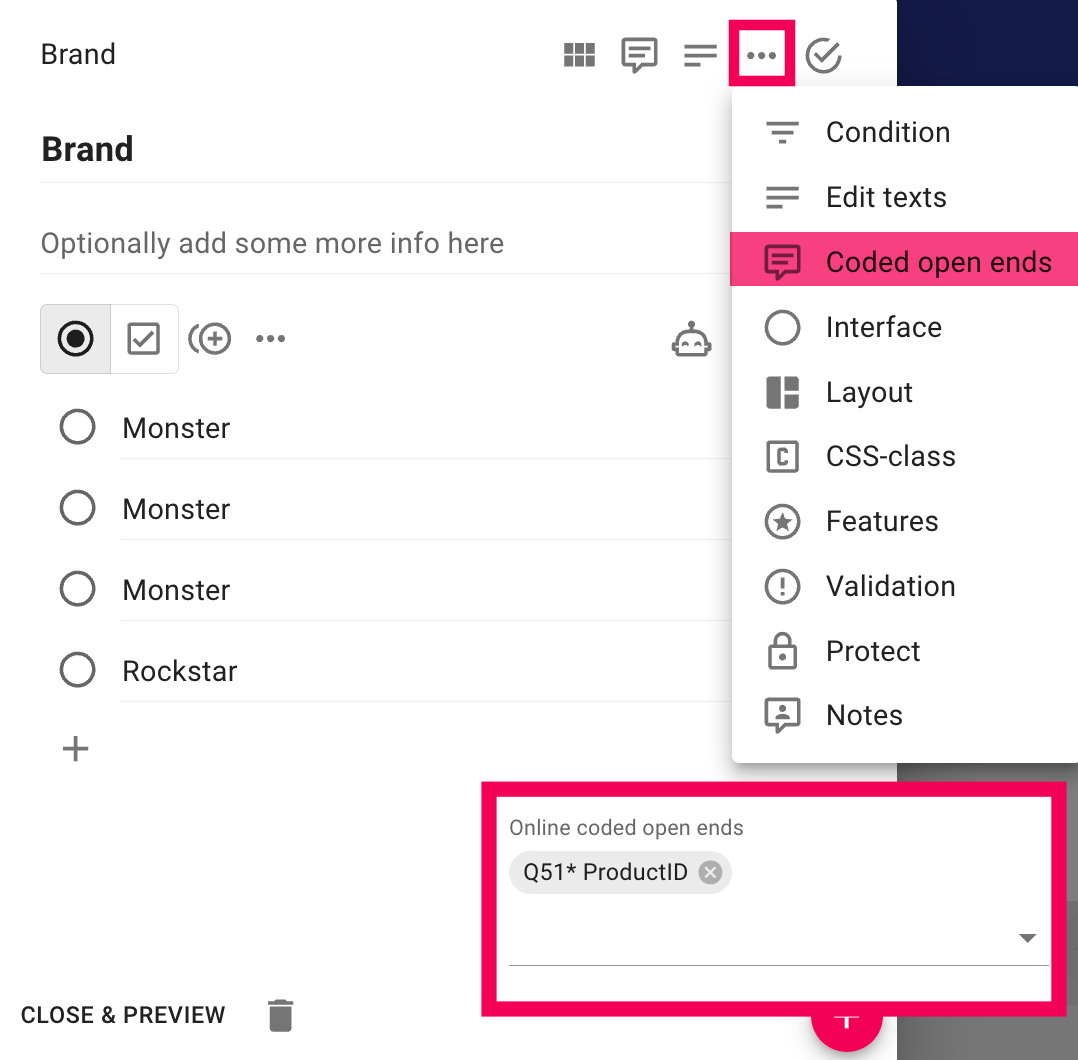
Open the Brand question’s settings → Coded open ends → select the ProductID question created in Step 1 (in this example: Q51 ProductID).
This connection means that when the survey detects a T-code in the ProductID field, it will automatically select the matching Brand answer, the one whose Popup text matches that code.
Step 5.
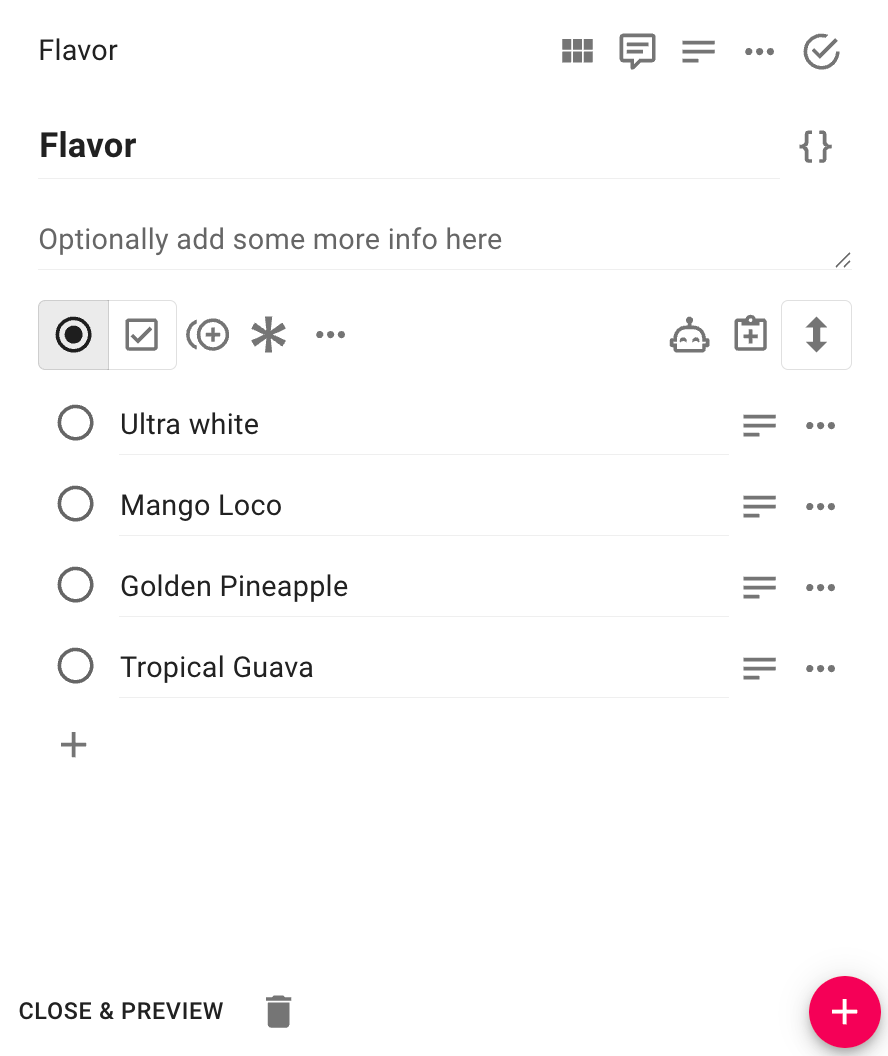
Create a new Single Select question named Flavor. Repeat the same setup as the Brand question: add all flavor alternatives, create an answer block, and activate Coded open ends pointing to the same ProductID question.
Importantly, the Popup text codes must use the same T-values as the Brand question: T01, T02, T03, T04, so that a single ProductID code selects both the correct brand and its corresponding flavor simultaneously.
Step 6.
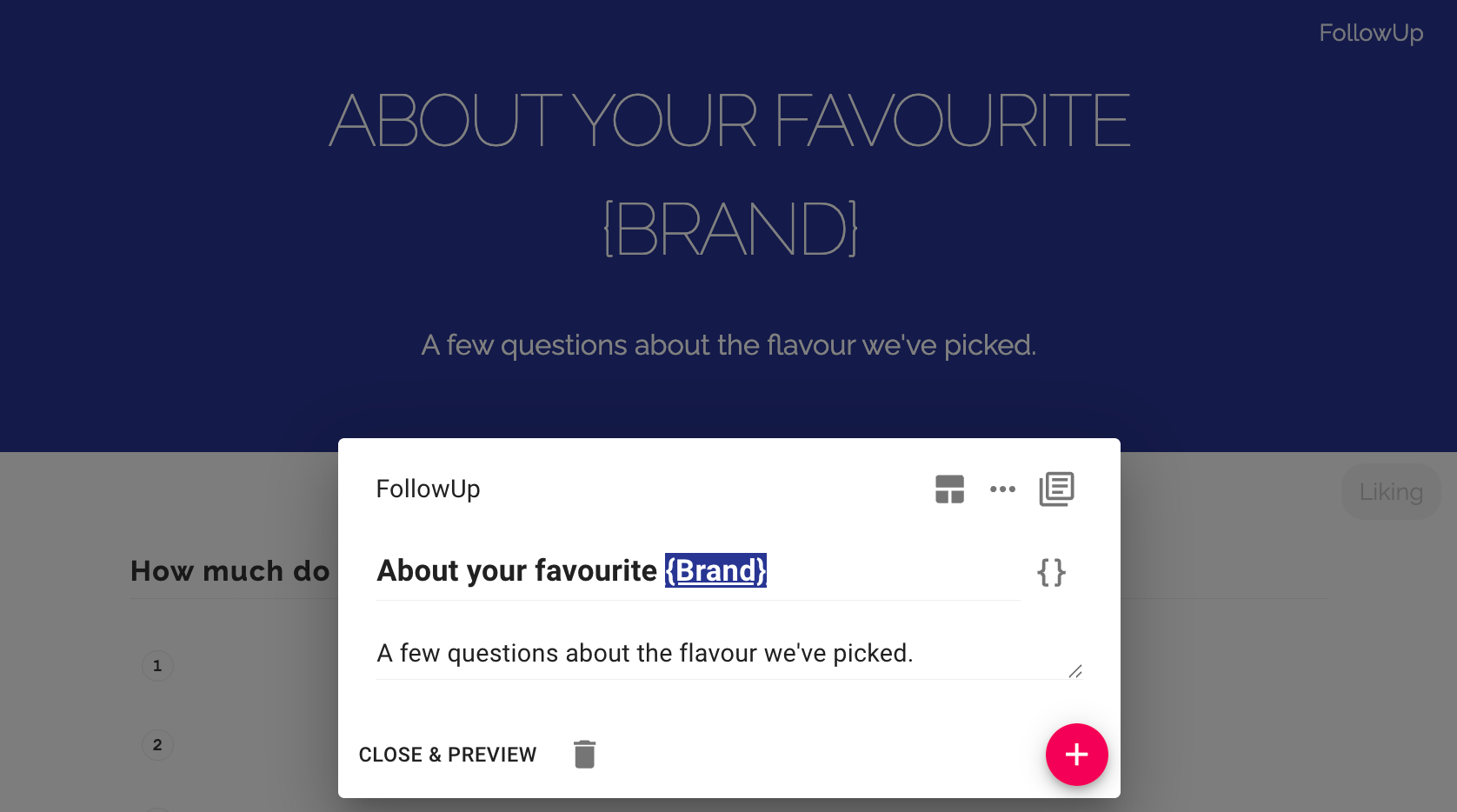
Create a Header block and write your introductory text. Use a Bookmark in the header that references the Brand question, so the respondent’s brand name is displayed dynamically (e.g. “About your favorite {Brand}“). Add a page break between the Header block and the Brand question.
Step 7.
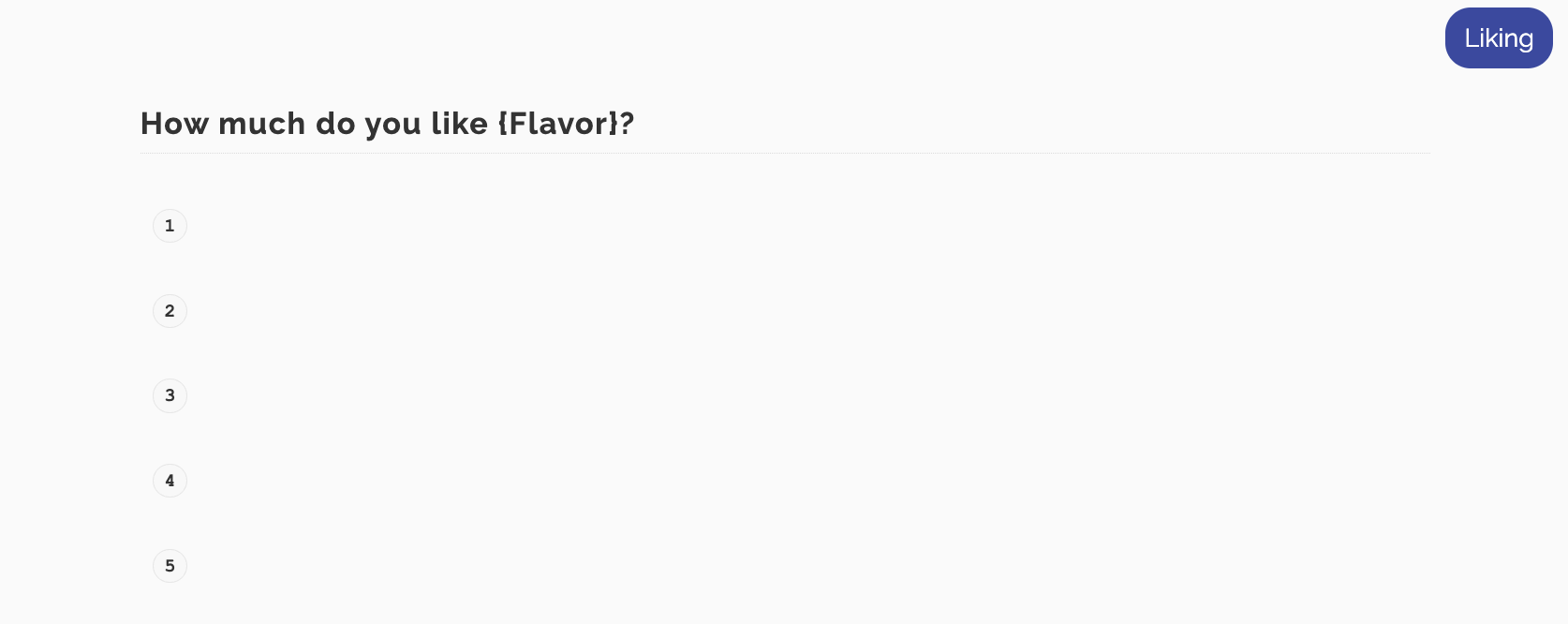
Create a question where the respondent rates the flavor. Add a Bookmark in the question text that references the Flavor question’s Coded open ends output, so the question reads dynamically (e.g. “How much do you like {Flavor}?“).
Step 8.
Before distributing, verify the bookmark logic works correctly. Open the survey and manually enter T01 in the ProductID field. On the following page, the Brand and Flavor bookmarks should resolve to the first entries in their respective answer blocks — in this example, Monster and Ultra White.
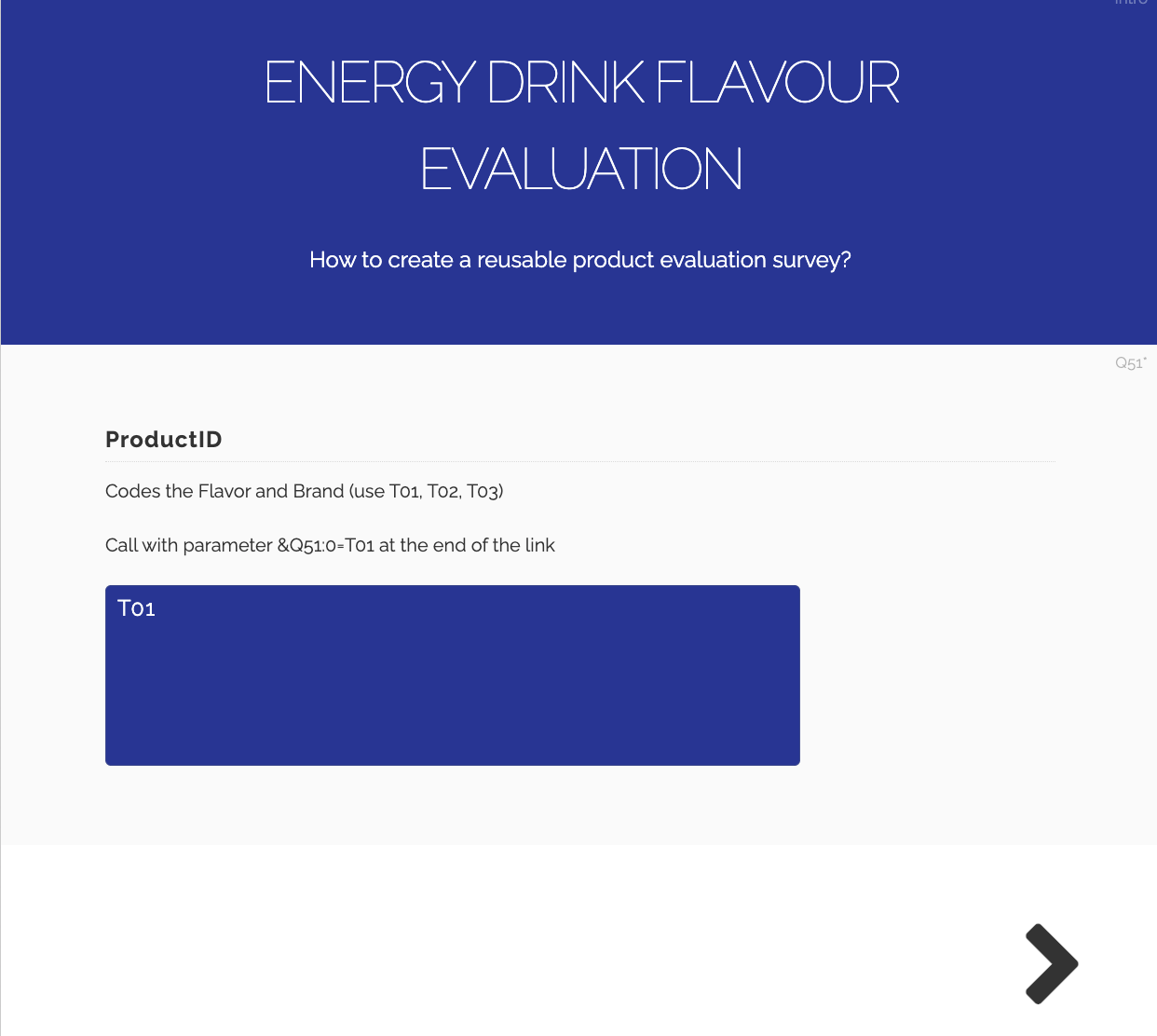
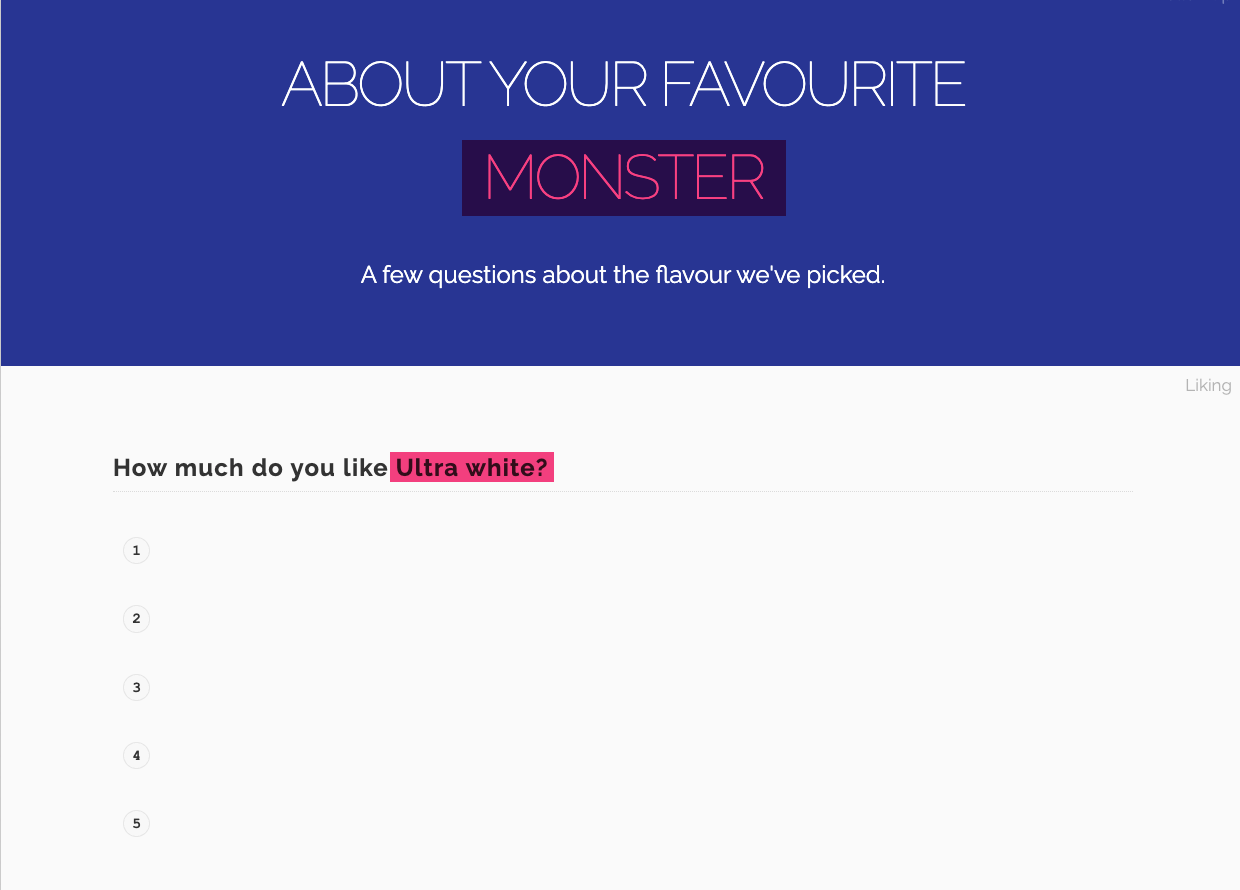
Step 9.
When distributing, enable panel links for the project. The base panel link in this project will look like this:
https://svar.researchautomators.se/?122200824start&XQID=[ID]&XQLANG=m
To pre-assign a specific product to a respondent, append the ProductID parameter to the end of the URL:
https://svar.researchautomators.se/?122200824start&XQID=[ID]&XQLANG=m&Q51=T01
Each T-code maps to a different brand/flavor combination. Send the appropriate link to each respondent group, there is no need to create separate surveys per product.
Conditions
A question can be displayed based on a participant’s previous responses in the survey or on background data already available about the participant.
How to Add a Condition
- Open the question you want to condition.
- Click the three-dot menu (⋯) in the upper-right corner of the question.
- Select Condition → Add new.
- Give your Condition a short name, such as “Has purchased.”
- Select which previous question or background variable should control the display, and which answer options should trigger it.
- Click OK.
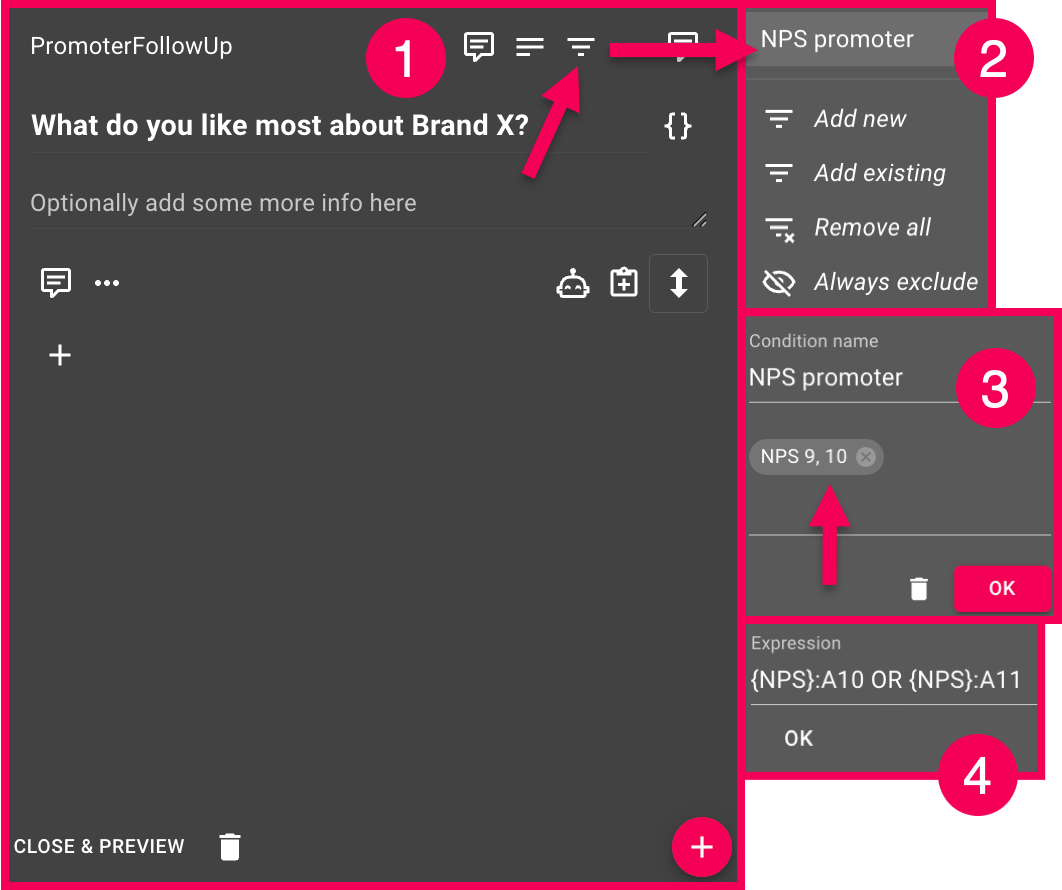
Conditions on individual response options or rows in a matrix
You can do the same thing at the detail level. Click the three-dot menu next to a specific response option or row in a matrix question instead of clicking the entire question.
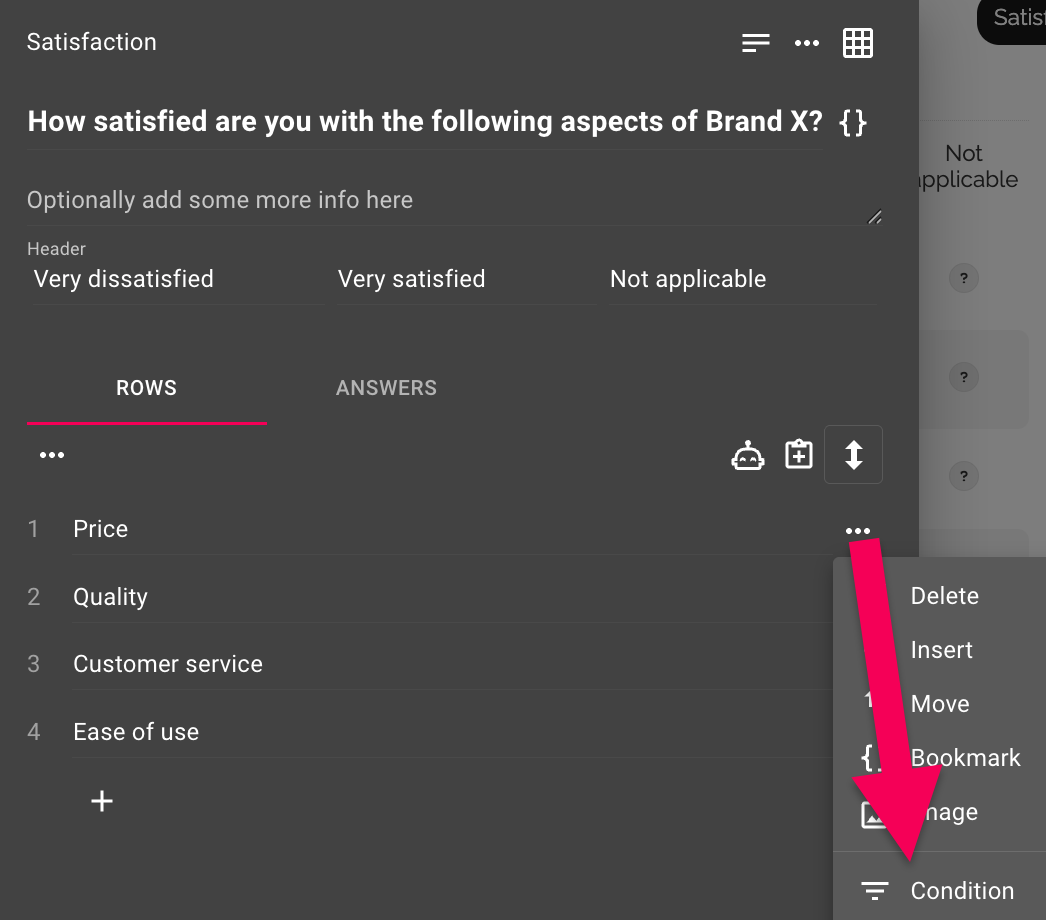
Background data
Conditions can also be based on background data, not just on responses in the survey itself.
Advanced: Conditions as expressions
Each Condition is built using an expression. If you click into the expression field (or work with Error message logic), you can view and edit it directly.
The basic form is {Question}:{Answer}, where the question ID and answer ID are enclosed in curly braces. The expression is true if the participant has selected that specific answer.
Example:
{Fulfilled}:{9}→ true if the participant selected answer 9 for the question “Fulfilled”
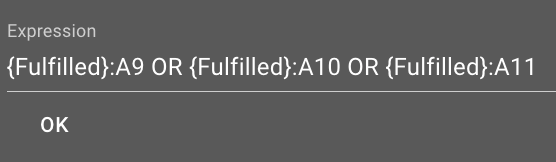
{Fulfilled}:{9} OR {Fulfilled}:{10} OR {Fulfilled}:{11}→ true if any of the answers 9, 10, or 11 were selected
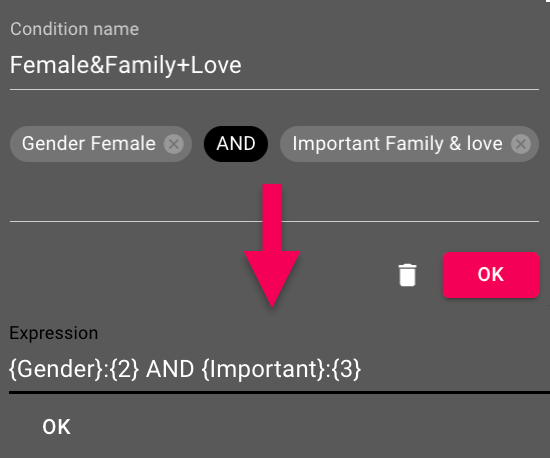
{Gender}:{2} AND {Important}:{3}→ true only if both conditions are met
For matrix questions, you specify a specific row by adding the row number: {Aspects}.1:A5 means answer 5 in row 1 of the Aspects question.
Comparisons and Calculations
Expressions support mathematical and comparison operators, which are useful for open-ended questions with numerical answers:
- Arithmetic operators:
+, , ,/
- Comparison operators:
>,>=,<,<=,=,<>
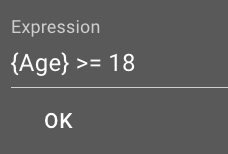
Example: {Age} >= 18 is true if the participant answered 18 or more to the “Age” question. This can be combined with AND/OR and parentheses just as shown above.
Report
Weighting survey data
Weighting is a method to improve survey analysis when some groups have too many or too few responses. By applying weights, we ensure the survey results better match the real population and avoid bias in the findings.
When should I weight my survey data?
Weight your survey data when your sample doesn’t match the population proportions you’re trying to understand. An example:
Your survey has 65% female respondents but the population is 50% female, weighting adjusts this imbalance.
Use weighting when the mismatch between your sample and the target population could affect your conclusions.
How are weights calculated?
Weighting might sound like something only for statisticians, but it’s really quite simple math:
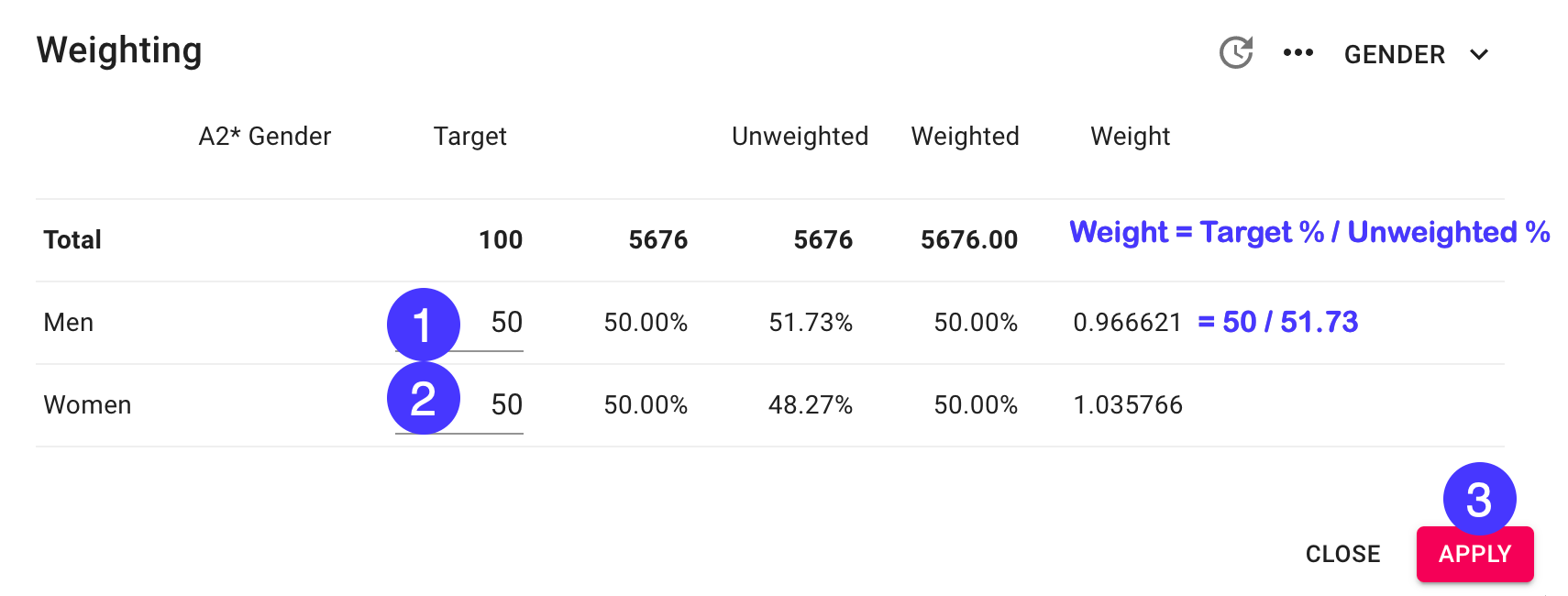
Weight = Target % / Unweighted %

Example:
If your survey has 51.73%: men and 48.27%: women,
but you want a 50/50 split:
50 / 51.73 = 0.966621 (Men's weight factor)
50 / 48.27 = 1.035766 (Women's weight factor)
Weighting in Survey Automator
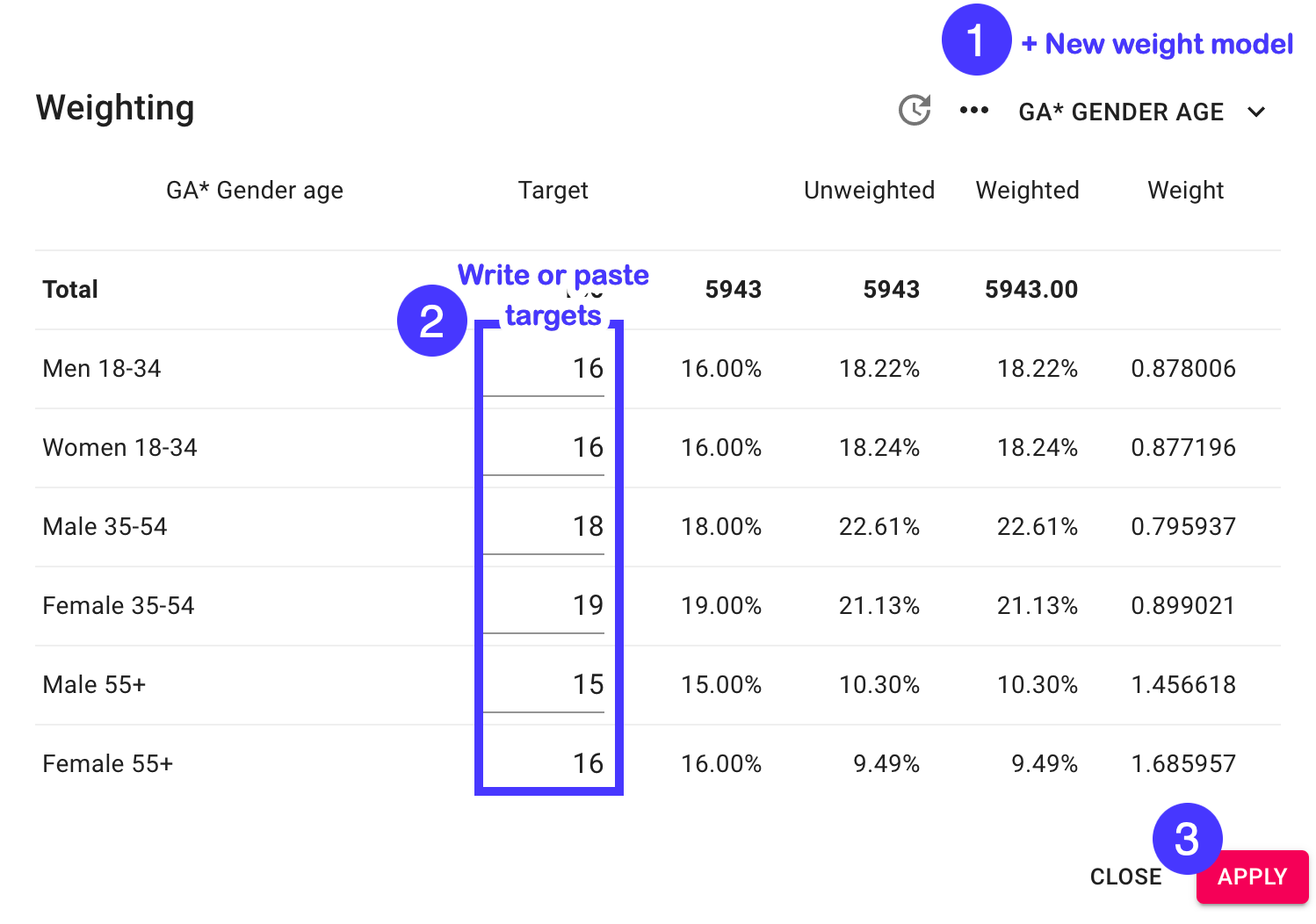
Step 1 – Create a weight model
To weight your survey data:
- Goto Report → Report settings ⚙️→ Weighting → New weight model
- Select the question you want to weight, e.g. Gender
- Enter your target weights in any format, e.g. Male 50, Female 50
- Press “Apply”
Step 2 – Activate weights in your report
To create a report using your new weights:
- Goto Report → Report settings ⚙️→ Weighting → Weights: On
- Refresh your report using the “Sync” button
What if I need to weight multiple variables?
You have two alternatives:
- If you only have the individual proportions within each variable → Alternative 1
- If you have the combined proportions of both variables → Alternative 2
Here’s two examples to help you choose:
Individual proportions – use Alternative 1
(raking)
| Gender | Targets |
| Male | 50% |
| Female | 50% |
| Age Groups | Targets |
| 18-34 | 33% |
| 35-54 | 33% |
| 55+ | 33% |
Combined proportions – use Alternative 2
(cell weighting)
| Gender + Age | Targets |
| Male 18-34 | 16% |
| Female 18-34 | 16% |
| Male 35-54 | 18% |
| Female 35-54 | 19% |
| Male 55+ | 15% |
| Female 55+ | 16% |
Weighting multiple variables – alternative 1 (Raking)
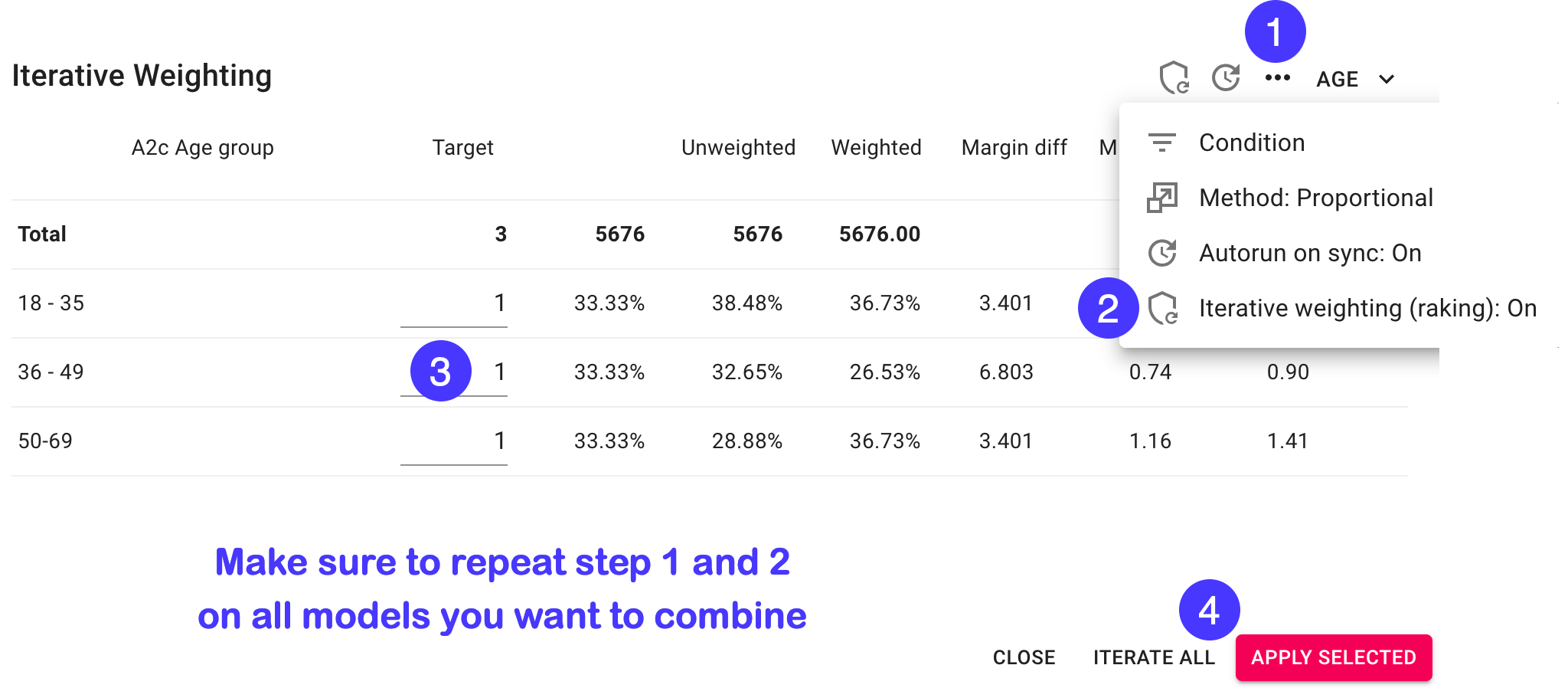
You can combine several weight models and use iterative weighting to make all variables fit your targets. This weighting process is called raking and iteratively updates previous weights taking you closer to your targets each time applied.
- Choose New weight model and choose another question to weight on
- On all weight models you want to combine choose “…” → Iterative weighting (raking)
- Do one of the following:
- Press Iterate all … or
- Press “Apply selected” to iterate yourself – repeat until margins are small enough
Conducting quality controls
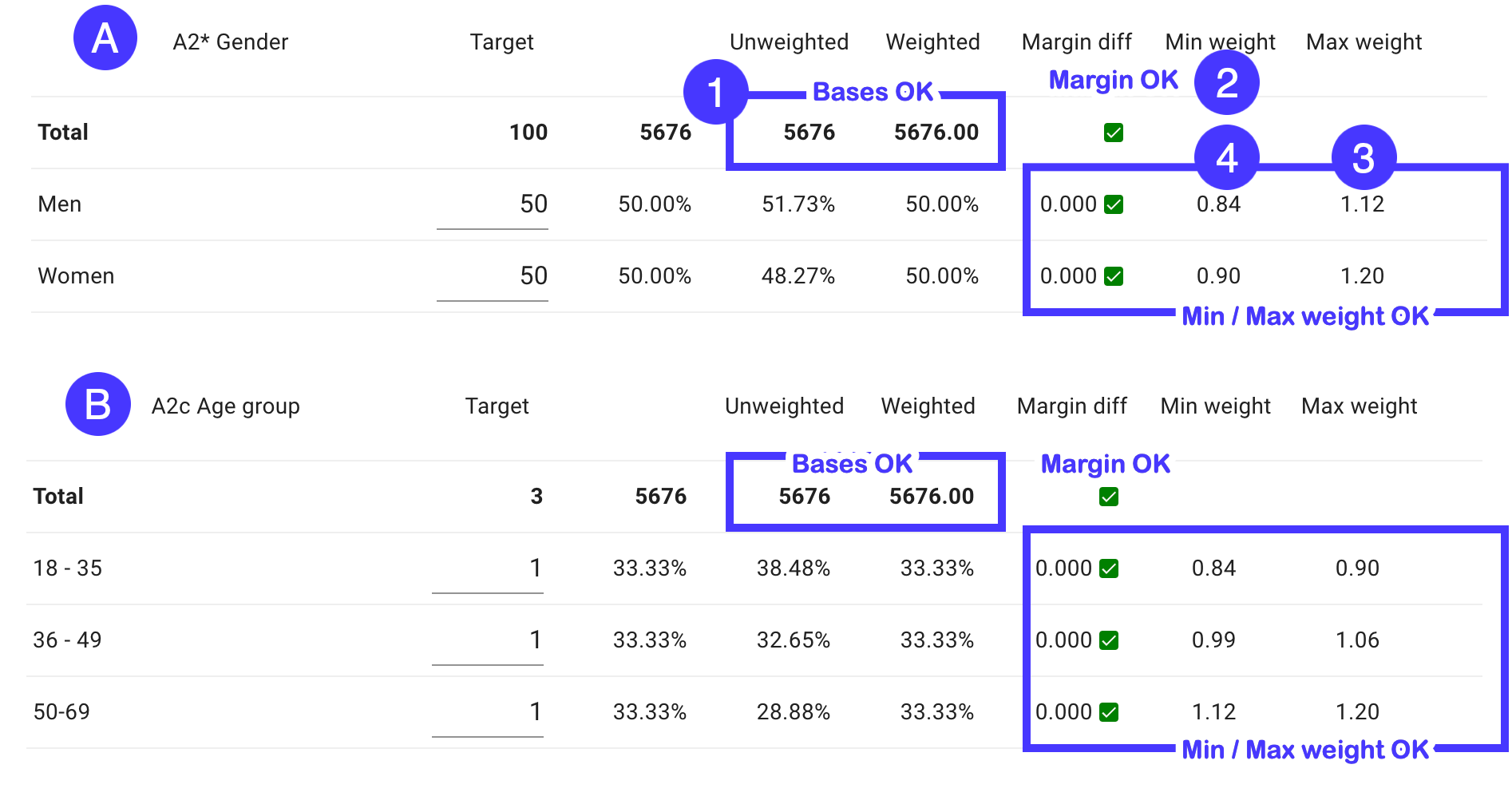
Conducting a few quality controls helps ensure your weighted survey data remains statistically sound is a good practice:
- Check that the margin diff is sufficiently small (less than 0.1% e.g.)
- Control that your weighted base is the same as your total base
(Optimally your weighting all responses on all models)
- Check that max weight is sufficiently small (smaller than 3)
(you don’t want a few responses to have too big an impact)
- Check that min weight is sufficiently big (bigger than than 0.3)
(you don’t want responses to have to small impact)
What if some my variables has missing answers?
Common practice is to only apply weighting to responses with complete data.
Let’s say you weight on Gender and Age you’ll only want to weight responses with answers to both those questions.
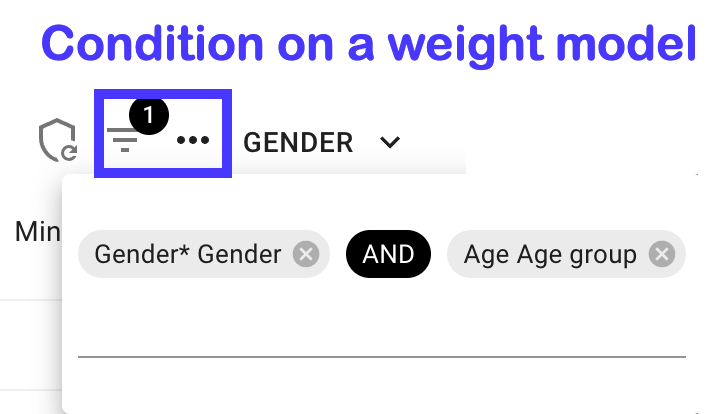
You achieve this by setting the same condition on all your weight models. The condition should be defined as having answers to all variables included in the multi variable weight model:
Another alternative would be include missing responses in your weight targets.
Let’s take Gender as an alternative, we could include missing answers like this:
| Gender + Age | Targets |
| Male | 49% |
| Female | 49% |
| Missing | 2% |
Handle this by creating a calculated variable with a Missing alternative and assigning an appropriate target to it in your weight model.
Weighting multiple variables – alternative 2 (Cell weighting)
Another weighting option when you have complete combined proportions of your target variables is called cell weighting. (The method is also called “cell-based post-stratification” or “complete post-stratification”.)
Instead of iteratively weighting each variable separately, you weight based on the full cross-tabulation of variables.
When to use cell weighting
Use this method when:
- You have access to the exact population proportions for all combinations of your variables
- Your sample size is large enough that each cell in the combined matrix has sufficient responses
Sufficient responses per cell?
A rule of thumb is to have at least 30 responses per cell. If you have less an option is to merge cells together to bigger groups. Another option is to consider raking (alternative 1).
Step 1. Creating the combined variable
- Goto Report → Edit → Survey variable list
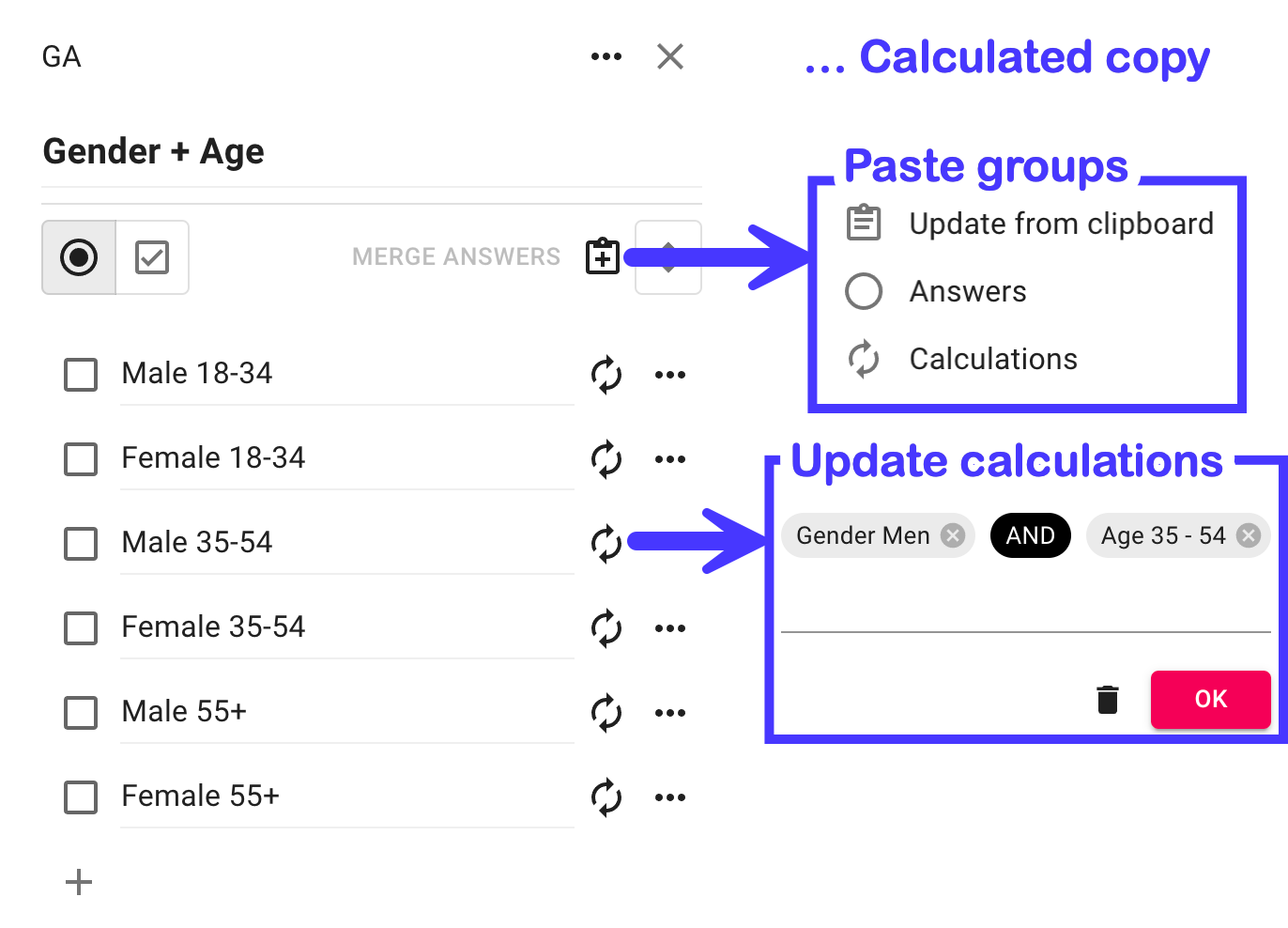
- Hover the final variable you want to combine → … → “Calculated copy”
- Paste or manually enter your target matrix labels
- Paste or manually enter the calculations

Step 2. Create the weight model
The process is the same as for a single variable:
- Goto Report → Report settings ⚙️→ Weighting → New weight model
- Select the calculated question you just created, e.g. Gender + Age
- Enter or paste your target weights for each cell
- Press “Apply”
Creating Crosstabs
How to Create Crosstabs
When creating a Dashboard Report, multiple crosstabs are automatically generated through our Rule-Based Report system.
A standard crosstab is created by default, and additional ones are generated based on the number of breakdown variables you have added to the Visual comparison section.
This automation ensures that all relevant comparisons are included without having to manually create each crosstab.
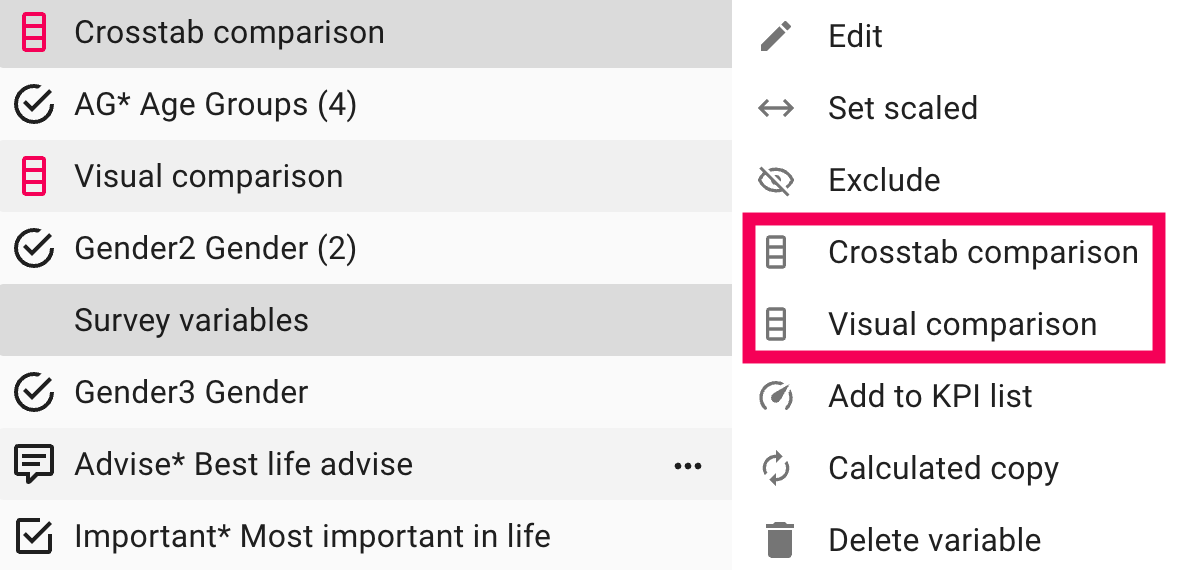
To add a variable to compare with in the Dashboard, click on the Edit-button in the bottom-right corner to open up the list. Then click on the 3-dots next to the variable and choose Crosstab Comparison or Visual Comparison.
Crosstabs in the Report Page
Creating or customizing a crosstab directly in the Report page is simple and flexible.
1. Switch the Presentation Type
To start, open your Report-page and switch the presentation to Table view:
- Locate the Presentation Type icon in the top-left corner of the toolbar.
- Click the icon and select Table from the list of available presentation options.
This changes the visualization from a chart or bars view to a crosstab-style data table presentation.
2. Adjust Datatype and Base
Under the Datatype dropdown, you can select how the data should be displayed:
- Percent positive
- Average
- Frequency – percentage
- And much more.
3. Add or Modify Breakdown Variables
To define what your crosstab compares, you can make sure that the Crosstab Comparison or Visual Comparison options are selected.
These Auto Variables will automatically make comparisons in your crosstab based on what variables you have added to the comparison list. This can for example be: Gender, age groups or time periods
If you only wish to use specific breakdowns to create comparisons with, you can select those instead of the Auto Variables as well.
Example Setup
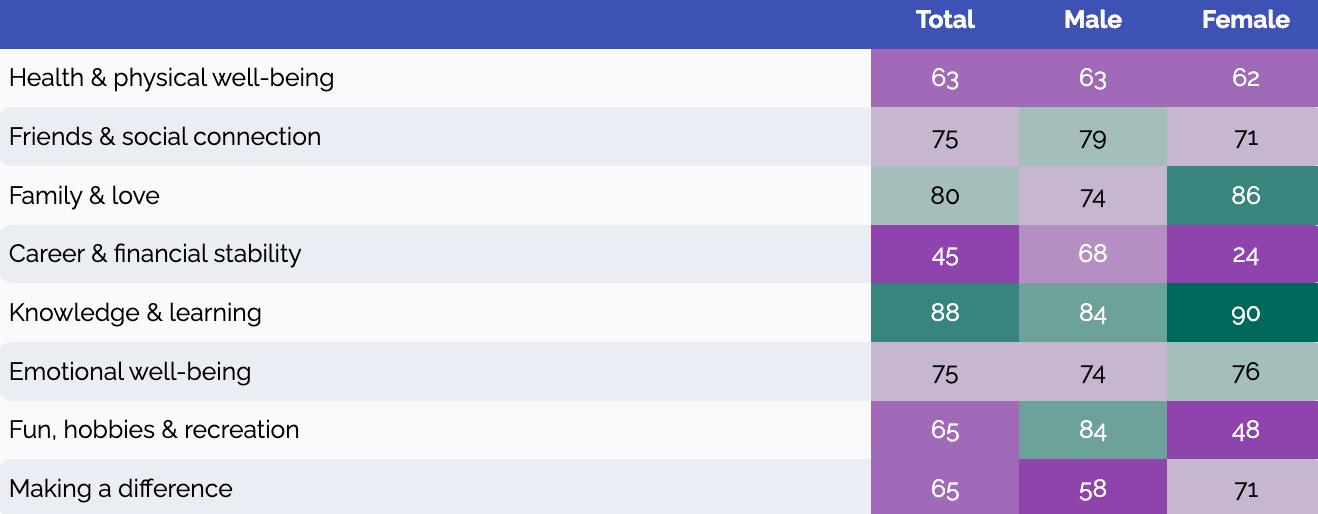
In this example:
- Question is: Scaled Grid Questions 2+ Answers
- Datatype: Percent Positive
- Crosstab Comparison: Gender
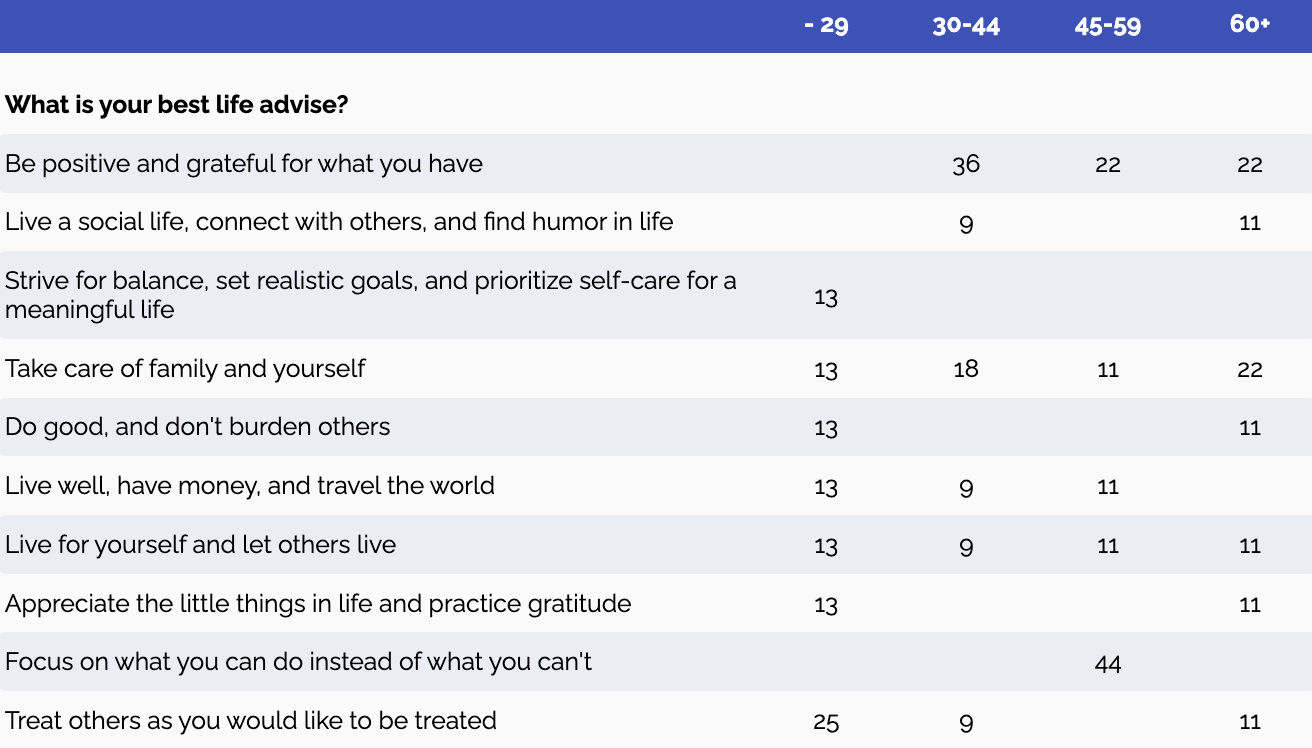
In this example:
- Question is: Calculated Open ends
- Datatype: Open ends sum
- Crosstab Comparison: Age groups
Category Hierarchies
What is a category hierarchy?
A category hierarchy is a structured way of organizing categories into parent–child relationships. Each level represents a layer of specificity, for example, Region → Country → Department → Team.
In Survey Automator, hierarchical categories can be used to export as Multiple Reports. By selecting the parent node as the driver variable, you can automatically generate separate reports for all child nodes, each including comparisons to its parent level.
Why use hierarchical categories?
Hierarchical categories make complex reporting manageable. They allow:
- Automatic aggregation of results from lower to higher levels.
- Drill-down navigation in dashboards and reports (e.g., Total → Region → Unit).
- Consistent data alignment across surveys sharing the same organization tree.
Without hierarchical categories, each level must be handled manually which can increase the risk of mismatched data or inconsistent roll-ups.
How are hierarchical categories different from other categories?
Ordinary categories are flat which means each value exists independently. An example of a flat, background variable would be gender or age groups.
Hierarchical categories, by contrast, define a parent–child dependency, where each node “belongs” to a level above it.
For example:
Global
 ├── Region A
 │    ├── Country X
 │    │    ├── Department 1
 │    │    └── Department 2
 │    └── Country Y
 └── Region B
This structure enables multi-level aggregation and filtering in reports, which cannot be achieved with standard (flat) categories.
Here is another example of how a hierarchical category tree could look after Categories has been exported as an Excel-file from the Distribute-tab:
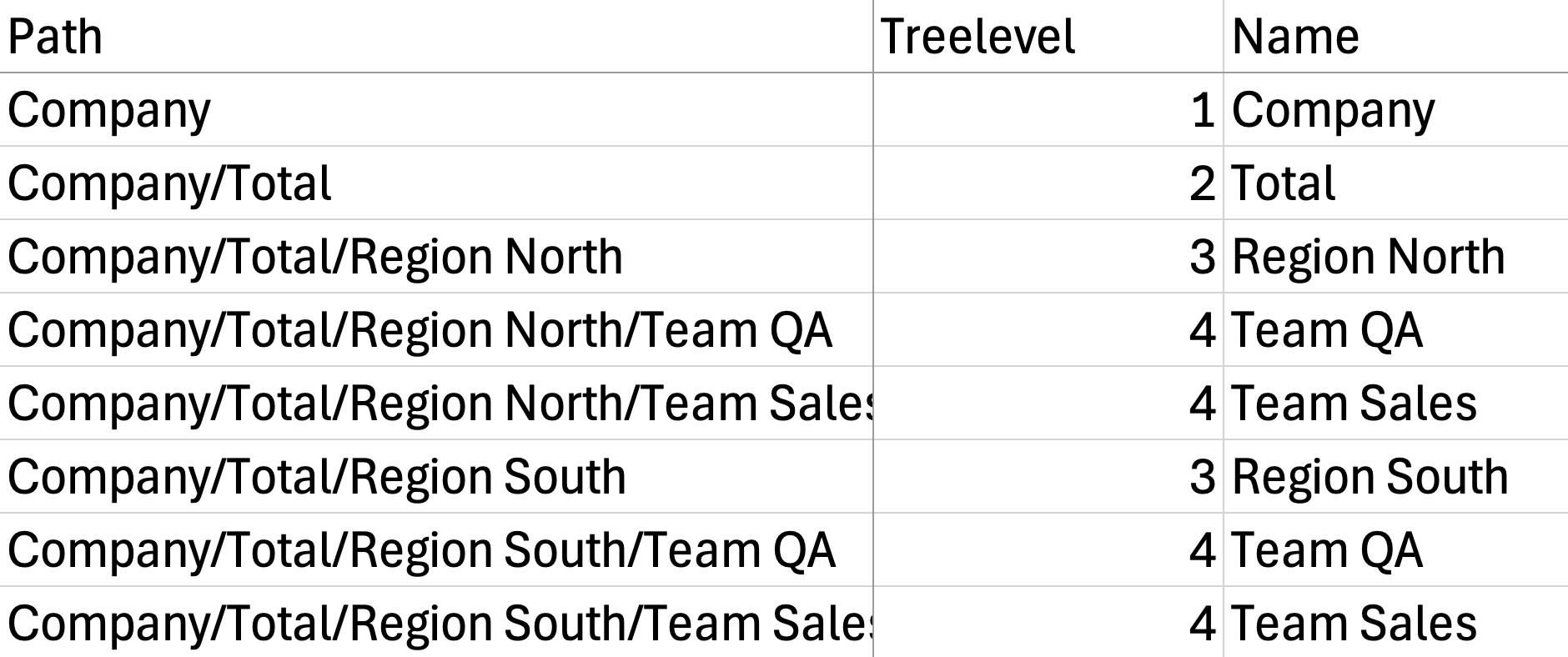
And this is an example of a flat category-tree without a properly working top-node:

Working with multi-level hierarchical reporting
When a project uses a hierarchy, you enable hierarchical reporting per report/dashboard:
- Open your Report or Dashboard.
- Click the cogwheel (⚙) in the top bar and choose Multiple reports.
- Select a Driver variable (your hierarchical category).
- Confirm. The system generates a report “instance” for each node in the hierarchy, letting you navigate level by level (e.g., All → Region → Department → Team).
Important details
- Driver variable = your hierarchy. Pick the hierarchical category that mirrors your org tree.
- Top node required. The hierarchy must have a single top (e.g., “All” / “Company” / “Total”). Without it, totals and roll-ups won’t work, and you can’t base multiple reports on it.
Important: Always use a Top Node
Each hierarchy must include a top node — this acts as the root of the tree.
- The top node represents the total population (e.g., “Company” or “All respondents”).
- All child levels (regions, departments, etc.) must branch from this top node.
- You cannot build multiple reports on the same hierarchy unless it has a defined top node.
Without it, the system cannot aggregate results properly or calculate overall totals.
Tip: Use a neutral label like “All” or “Total” as your top node to make it clear in reports.
Steps after setup
Delete unused descendants
After importing or editing your hierarchy:
- Go to the Distribute-tab
- Click on your Category and select Delete Unused Descendants.
- This helps avoid blank report entries and keeps the structure clean.
Not seeing any responses?
If your charts or report pages show empty or zero data:
- Check the hierarchy connection
Confirm that the category variable used in your respondent data matches the hierarchy codes exactly.
- Check the Integrity feature
In Report / Dashboard → Cogwheel (⚙) → Integrity, you can define the smallest base required to produce data or reports.
This means you set a minimum number of responses that must be available for a result to be shown in a report or dashboard.
How to Copy (Duplicate) a Single Report Page into Another Report
If you want to copy one specific report page (not the entire report) into another report, you do this from the Page list view using the Duplicate into action.
Prerequisites
- You have access to the project’s Report area.
- The destination report is in the same project (this function works within a project).
Step-by-Step Instructions
- Open the Report tab
- Go to your project and open the Report tab.
- Switch to Page list view
- Press Ctrl + L to switch to the Page list.
- Alternatively, click the gear icon in the top-right corner and select Page list.
- Select the page you want to copy
- In the Page list, click the row for the page you want to duplicate.
- You can also select multiple pages if needed.
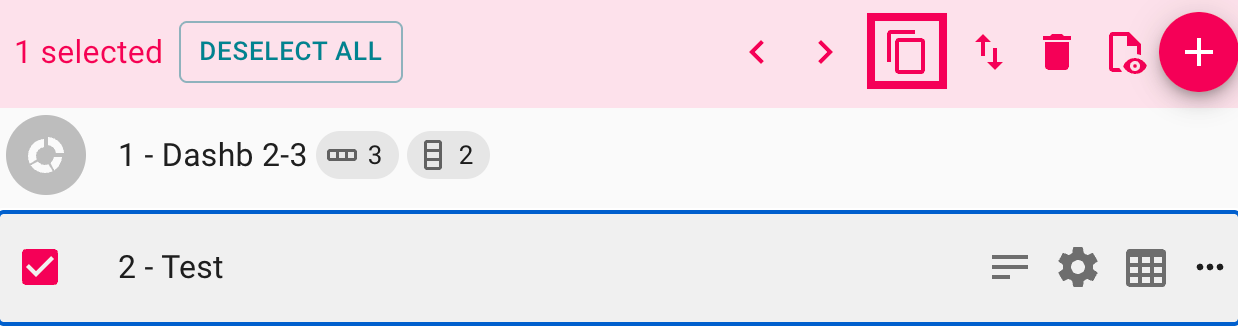
- Click “Duplicate into”
- Click the Duplicate into icon (the duplicate/copy action in the toolbar above).
- A dropdown/list will appear.
- Choose the destination report
- From the list, select the report you want to copy the page into.
- The system will duplicate the selected page(s) into the chosen report.
Significance testing
Survey Automator can flag statistically significant differences in banner and cross-tab tables, so you can see at a glance which results stand out rather than reflecting random sampling variation. This document explains what is tested, how, and how results are displayed.
What Gets Tested
Significance is calculated for two kinds of values in a table:
- Proportions — the percentage of respondents giving a particular answer.
- Averages — the mean of a numeric or scale value.
For each, Survey Automator compares one figure against a reference figure and asks: is this difference large enough to be unlikely to have arisen by chance?
Comparison Mode
You choose what each column is compared against:
| Mode | What each column is compared to |
|---|---|
| Total (default) | The overall total (the whole sample) |
| Previous | The adjacent previous column |
In Total mode, each breakdown group is tested against the full population — useful for spotting which subgroups differ from the average respondent. In Previous mode, columns are tested against each other in sequence — useful for tracking changes across waves or ordered groups.
How the Tests Work
All tests produce a z-score: a measure of how many standard errors a difference is away from zero. A larger absolute z-score means a more surprising difference. The z-score is then compared against a critical threshold tied to your chosen confidence level.
Comparing a subgroup against the total
Proportions. The subgroup’s proportion is compared to the total proportion, with the standard error based on the subgroup’s sample size.
Averages. The subgroup’s mean is compared to the total’s mean (a one-tailed test), using the total’s standard deviation and the subgroup’s sample size to form the standard error.
Comparing two groups against each other
Proportions. The two groups’ proportions are compared using a pooled proportion (combining both groups to estimate the shared variance), with the standard error reflecting both sample sizes.
Averages. The two means are compared using the standard error built from each group’s own standard deviation and sample size. This test only runs when both groups have more than 30 respondents — below that, no significance is calculated, because the test is not reliable on small samples.
Confidence Levels
You select a confidence level, which sets the threshold a z-score must clear to count as significant. Higher confidence demands a larger difference.
| Confidence level | Threshold (z) |
|---|---|
| 90% | 1.282 |
| 95% | 1.645 |
| 99% | 2.326 |
These are one-tailed thresholds, so the test distinguishes “significantly higher” from “significantly lower” rather than just “different.”
How Results Are Displayed
Each tested value gets one of three outcomes:
| Outcome | Meaning | Default color |
|---|---|---|
| ▲ Higher | Significantly above the reference | Blue |
| ▼ Lower | Significantly below the reference | Red |
| (none) | Not significant — no marker | — |
The colors are themeable, so they can be matched to client branding. The same significance marker carries through consistently to every export format — both Excel and PowerPoint reports show the identical highlighting.
Column-to-column comparison (a/b/c letters)
In addition to the higher/lower arrows, columns can be compared pairwise, with each column labelled a letter (a, b, c, …). A letter placed on a value means that value is significantly higher than the lettered column — e.g. a “c” on column A reads “A is significantly higher than C.”
Methodology notes
This section explains the reasoning behind two methodological choices.
Why the tests are one-tailed
The confidence thresholds above (1.282 / 1.645 / 2.326) are one-tailed. This is the correct choice because every significance mark in the product is directional — an up-arrow claims “higher,” a down-arrow claims “lower,” and an a/b/c letter claims “higher than that column.”
What the “vs Total” comparison actually answers
In Total mode, each subgroup is compared against the overall total. The current test answers comparison against the visible total — which has the advantage that the arithmetic matches what is on screen. A vs-Total flag means “differs from the overall benchmark,” and it is a lenient, exploratory comparison — a starting point, not an independent-difference verdict.
Multiple comparisons in a/b/c tables
Pairwise column comparison runs many more tests than the arrows. Each individual letter is a correct one-tailed test at its stated level, but because so many tests run across a table, some letters will appear by chance alone. The letters are not family-wise corrected, so a table full of letters should be read as the sum of many independent tests, not as one collectively-certain picture.
Correlation Tables
Correlation tables use a different, dedicated significance test (a t-test) suited to correlation coefficients. This is separate from the proportion and average testing used in standard banner and cross-tab tables.
Distribute
How to add a Microsoft / Google account
Why is it a good idea to use your own domain account?
When you send email campaigns from Survey Automator, you can choose to link a Microsoft or Google account. This means that emails are sent directly from your (or your customer’s) own domain instead of from the platform’s default domain.
The benefits are:
- Higher delivery reliability —emails sent from a known and trusted domain are less likely to end up in spam.
- Better sender identity —the recipient recognizes the sender, which increases the open rate.
- Control over domain reputation – you can control how your domain is used and avoid sharing the sending domain with other senders.
- Flexibility – you can use the customer’s domain by inviting them as a Client and letting them link their account.
By default, mailings are limited to 12 emails per hour, which is a safety measure to prevent damage to the domain’s reputation.
Here’s how to do it step by step
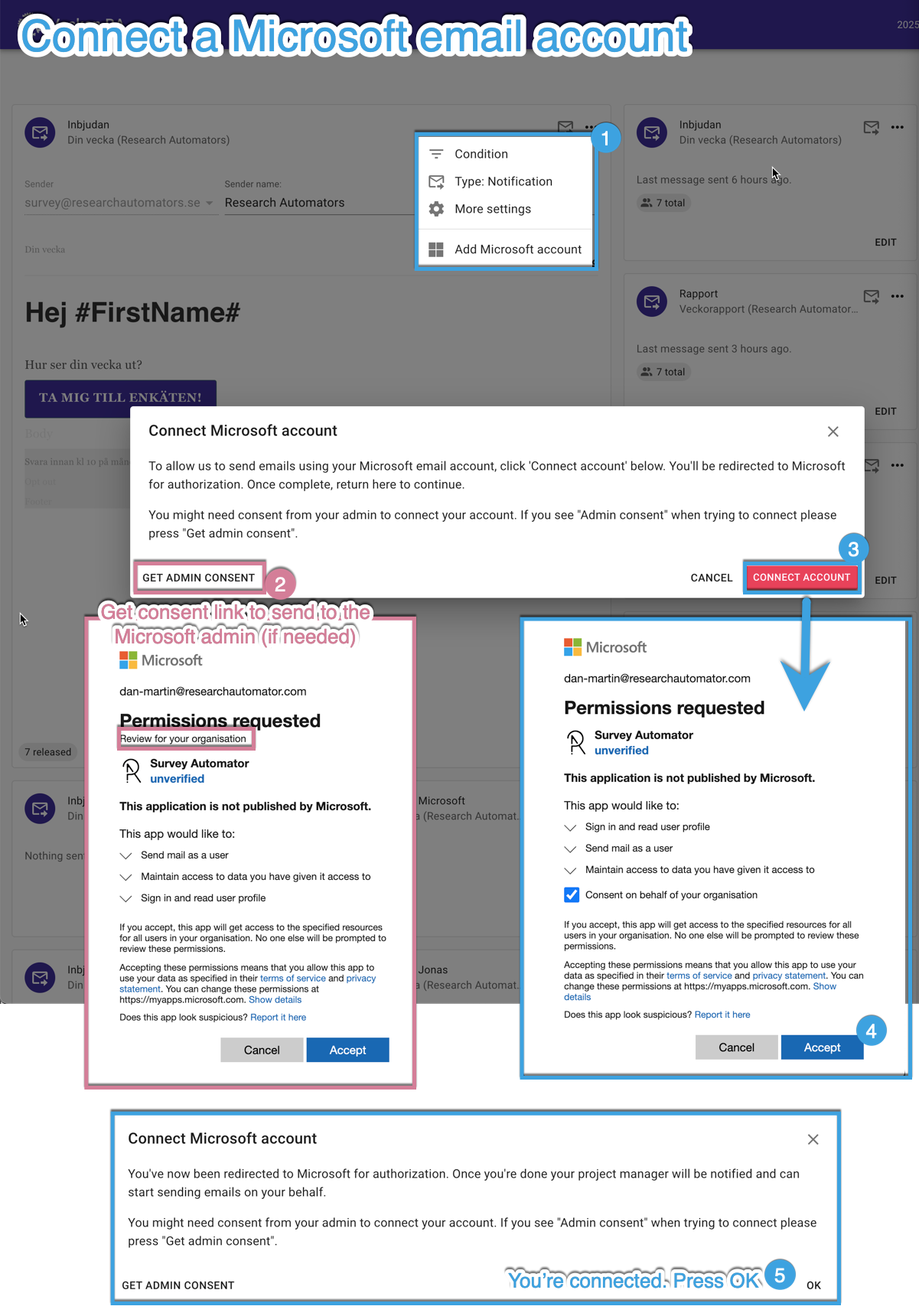
- Open your project and go to the Distribute tab.
- Find the campaign card (the distribution you want to work with).
- Click the three dots (⋯) in the upper-right corner of the card.
- Select “Add Microsoft Account / Google Account.”
- Sign in with the account you want to use (your own or the customer’s).
- Once the account is linked, you can select it as the sender for your mailings.
Going forward, your emails will be sent directly through the selected domain.
You can change the domain you use to send emails from if you want to switch back.
Connections
New User Login
You will receive an email from the@researchautomators.com domain with instructions on how to log in.
Follow these steps:
1. Click on ” Create account” in the email or go to the link:
https://app.researchautomators.com/CoAction/Logon.aspx?action=setpsw
2. Enter the email address you used to register with us:
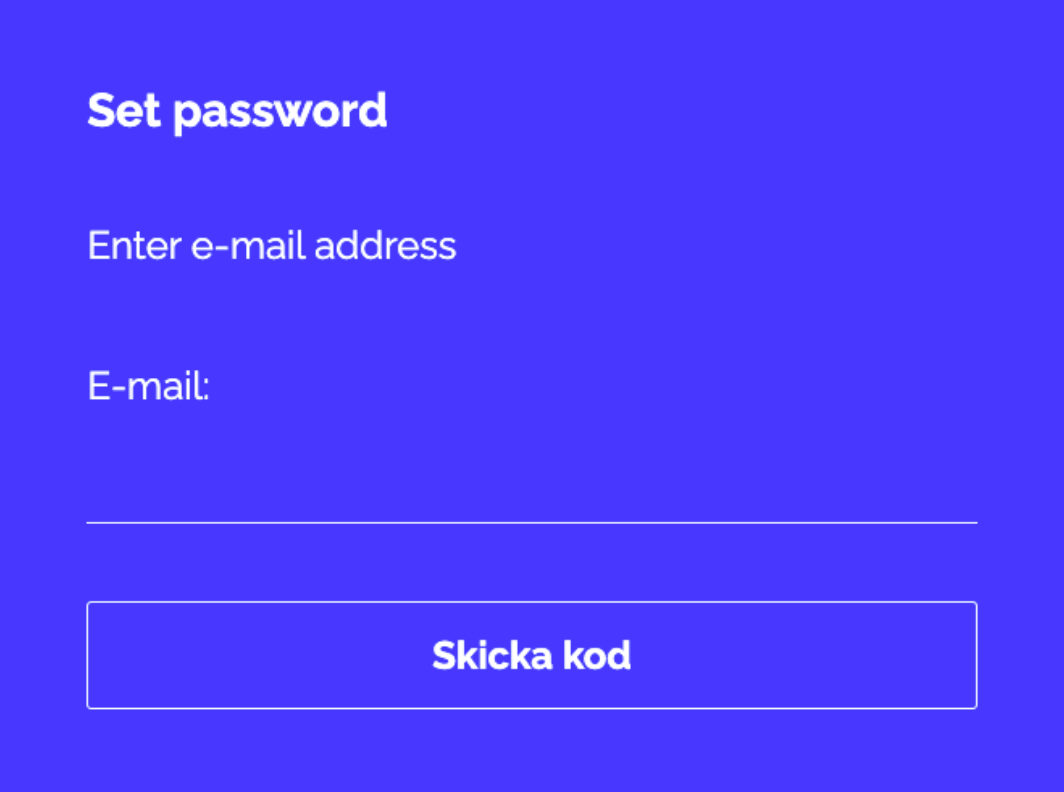
3. You will then receive a new email with a verification code. Copy and paste it to continue.
Check your spam folder if the email hasn’t arrived within a few minutes
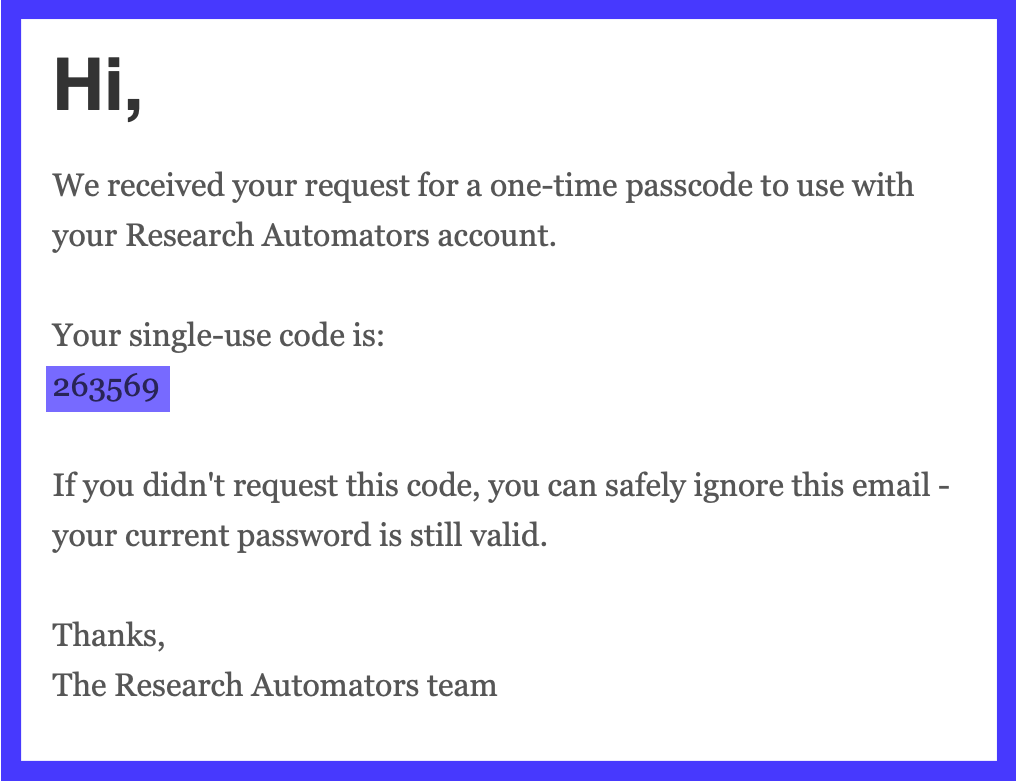
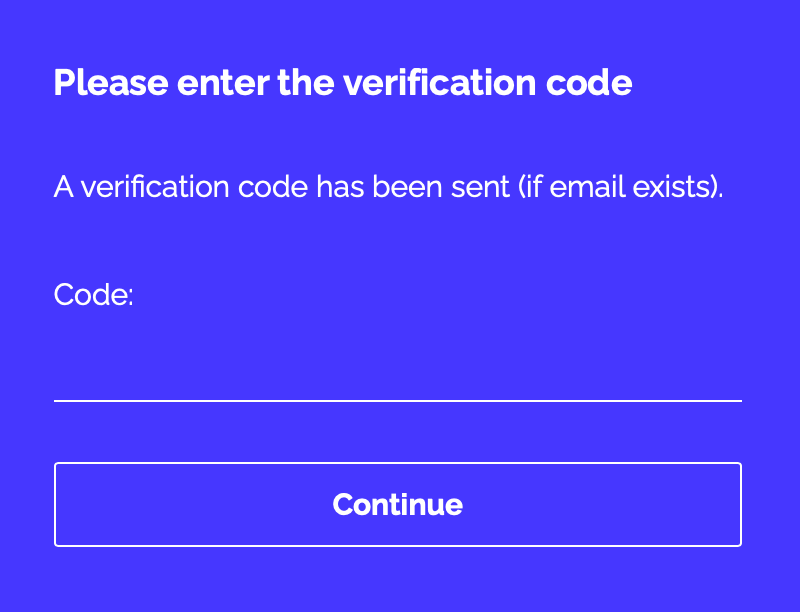
4. Enter the verification code.

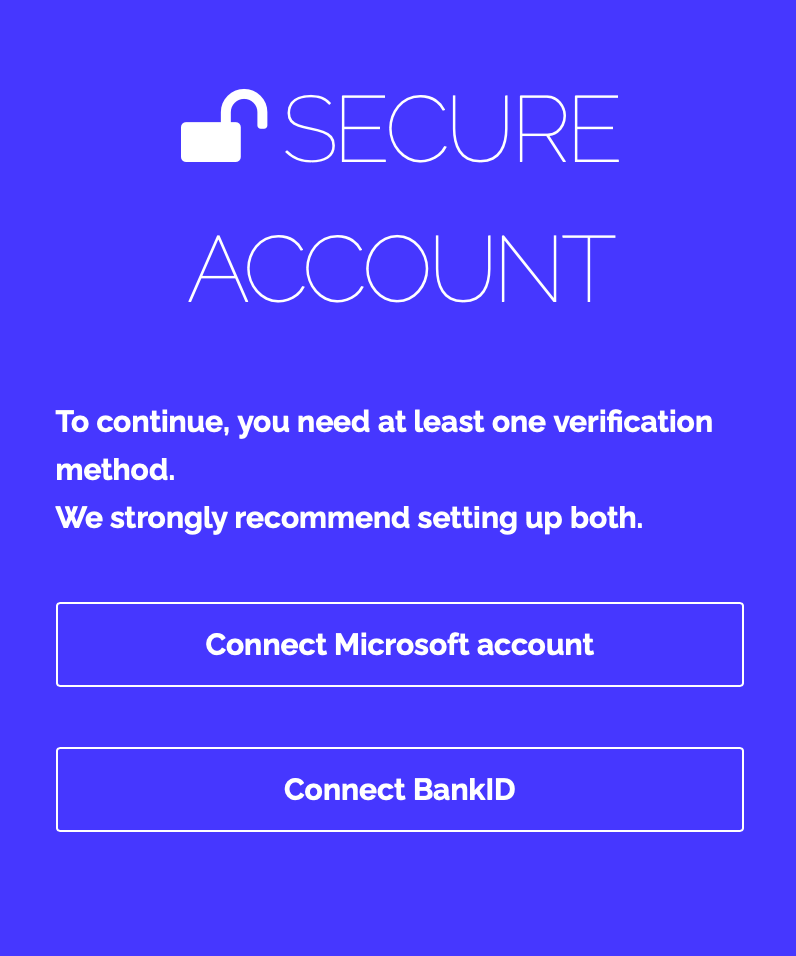
5. Set up a verification method. You can link your Microsoft account, BankID, or both. If you choose Microsoft, you can log in immediately; if you choose BankID, simply scan the QR code.
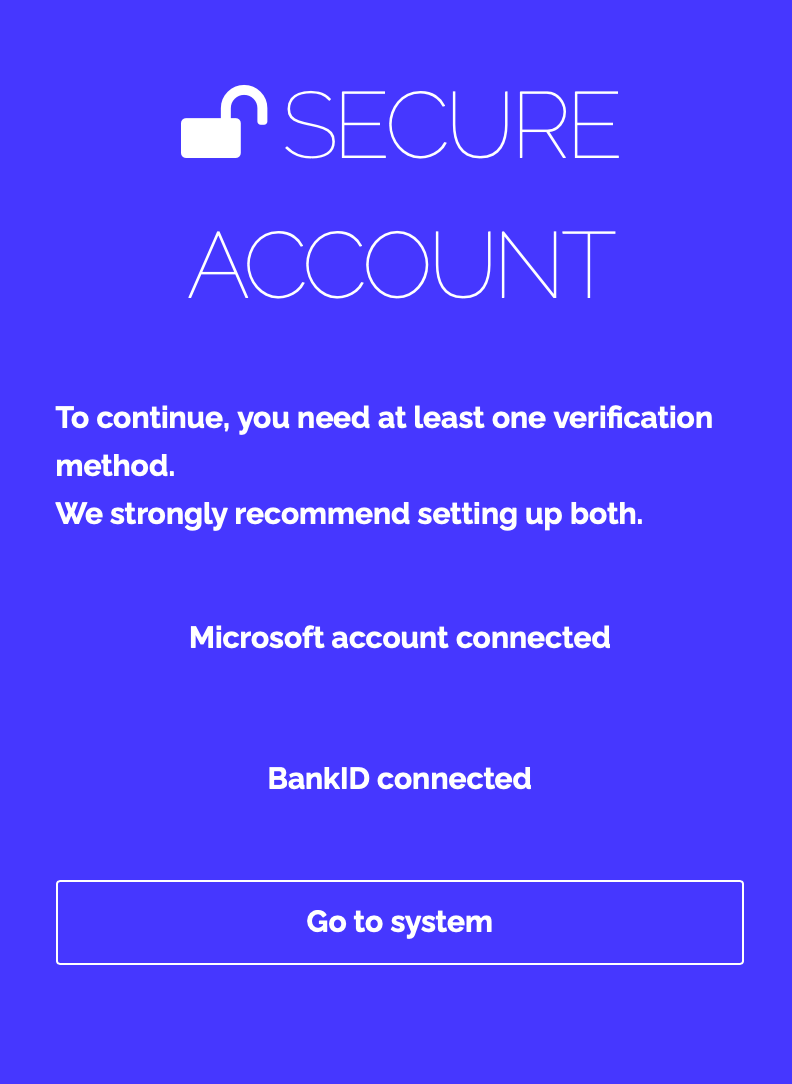
6.  After linking one or both, click Go to system.

7. Now choose how you want to log in, and you’ll be taken directly to the platform.